手册 v0.1.0 · KaiderBooks v2.0.0 · 2026-07-20
The client portal (for business owners)
In one sentence
This chapter is for the business owner: photograph a receipt on your phone and it reaches your accountant, and check any time how the month is going and whether the reports are out — no app to install, no accounting to learn.
1. Four pages, and that is all
The portal is a phone-first interface with four pages, switched from the bottom navigation:
| Page | What it is for |
|---|---|
| Home | What is waiting on you, and the latest reports |
| Owner view | How much you made this month, and where the money went |
| Documents | Photograph and upload invoices and receipts, track their progress |
| Reports | Profit and loss, balance sheet, cash flow, ledger and filing records |
2. Home: what needs you first
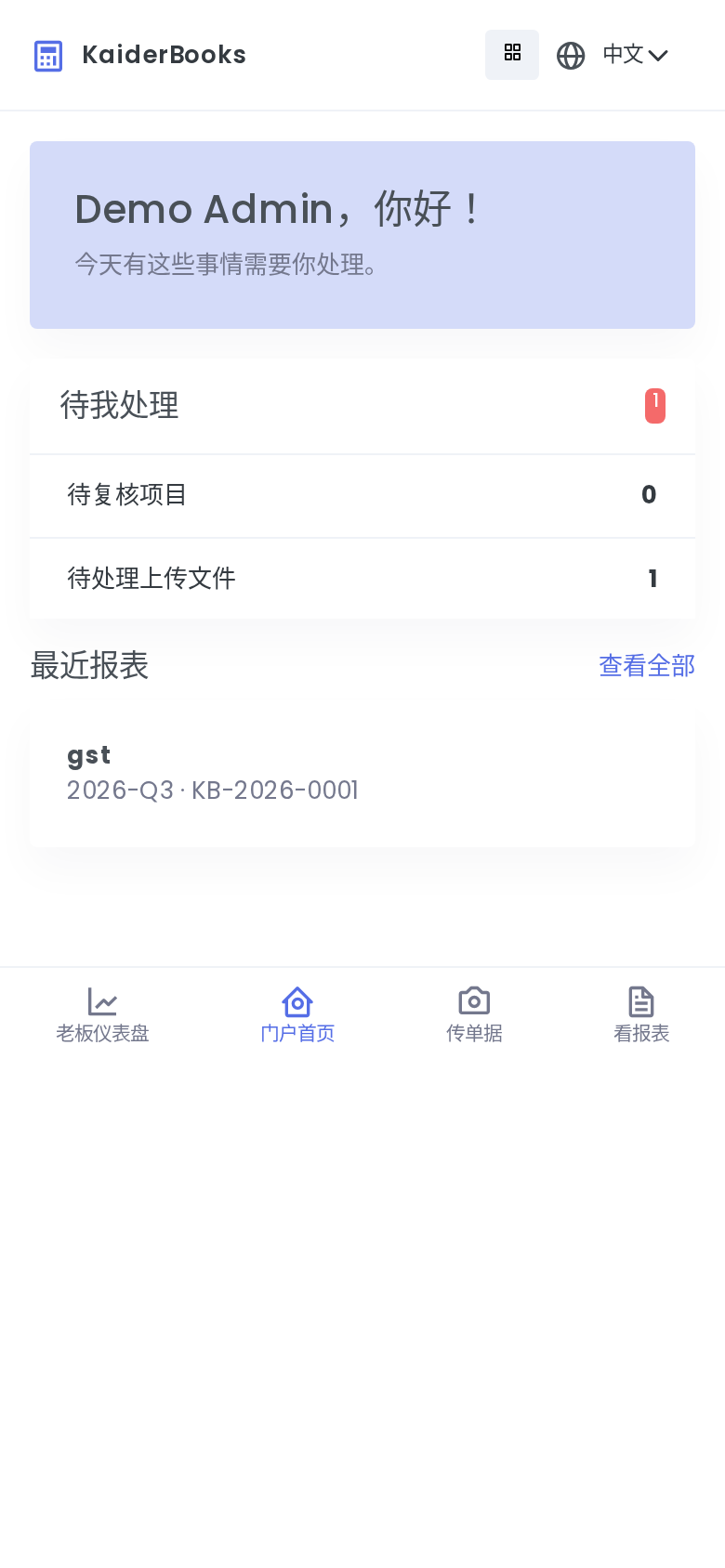
You are greeted by name, and below that sits Waiting on you — both lines are tappable:
| Item | Meaning |
|---|---|
| Items to review | Your accountant has something for you to confirm |
| Uploaded files pending | Documents you sent are still being processed |
The red number is the sum of the two — at zero, nothing is queued on your side.
Further down are the most recent reports; tap one to read it, or See all to open the Reports page.
3. Sending documents: just take a photo
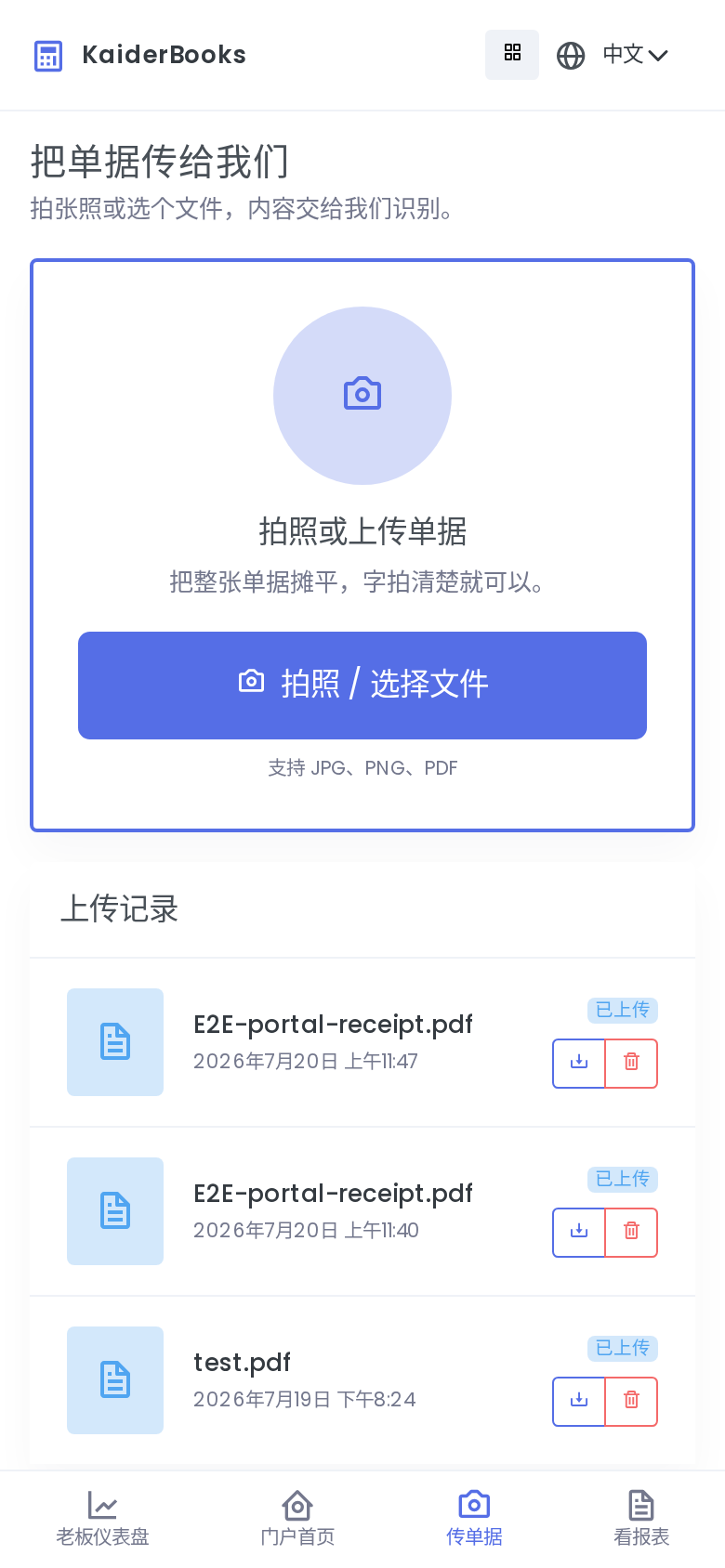
A single large button sits in the middle of the page: Take a photo / choose a file.
- On a phone it opens the camera directly, or lets you pick from your gallery
- JPG, PNG and PDF are accepted
- Several at once is fine — send a stack of receipts in one go
Everything you send appears in the Upload history below, each with a status:
| Status | Meaning |
|---|---|
| Uploaded | Sent successfully, waiting for your accountant |
| Processing | The system is reading it |
| Recognised | Read successfully, your accountant is checking it |
| Please resend | It could not be read — usually blurred or cropped; take another photo |
Every record can be downloaded, or deleted (deleting asks for confirmation).
A clear photo is a fast one
Get all four corners in frame, avoid glare, hold still. A document the system reads first time is one you never resend and your accountant never retypes. The amount and date lines matter most.
What happens after you send it
Your upload lands directly in your accountant's document inbox. They move it through the workflow — uploaded, processing, then recognised or failed — and the status you see on this page is their progress in real time.
4. Owner view: how the month is going
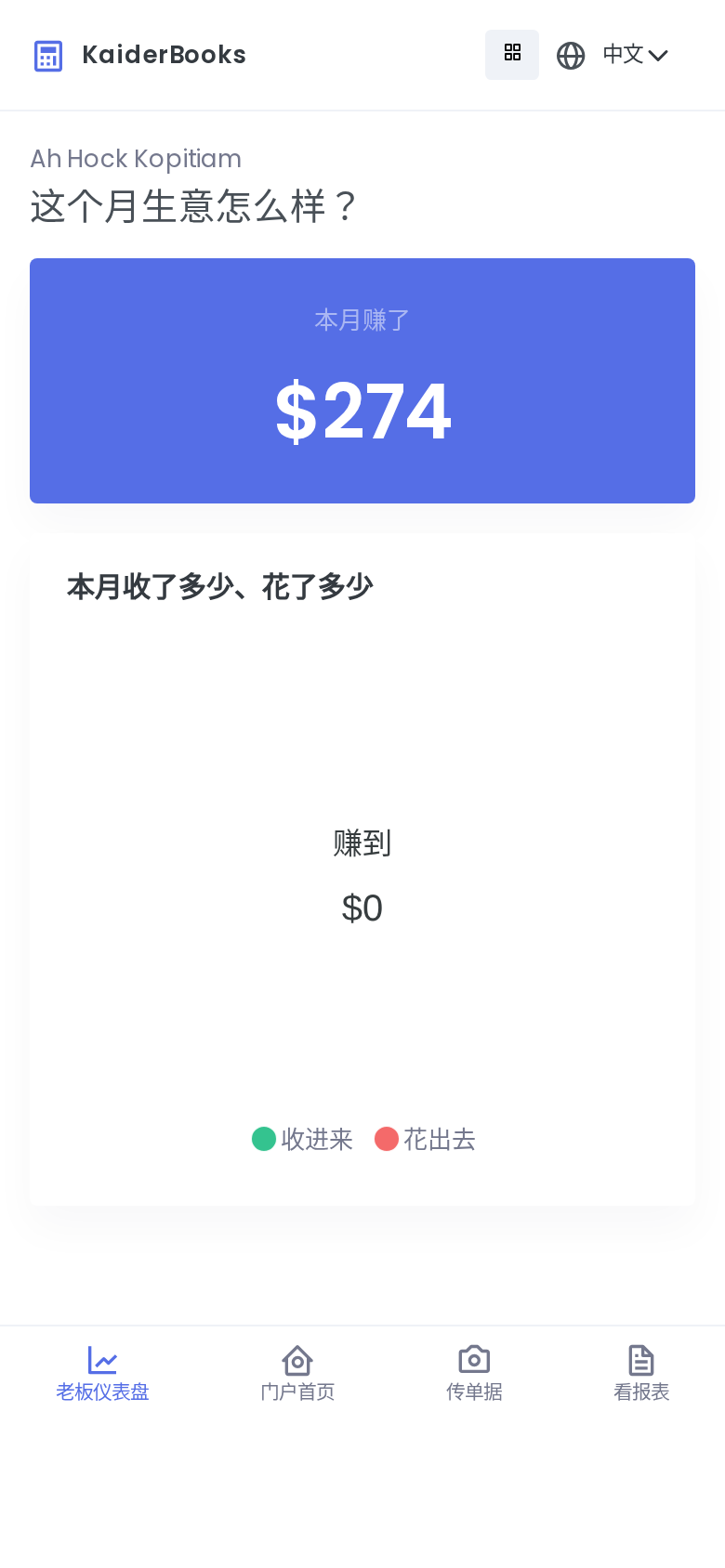
One large card tells you what you made this month, and a doughnut chart below splits the month three ways:
- Money in — revenue for the month
- Money out — expenses for the month
- Kept — the difference
Nothing here asks you to read a chart of accounts; it is a gut-level read on how business is going.
The figures count posted entries only
Anything not yet in the books — documents you sent that your accountant has not finished — is excluded. Mid-month this is an indication; the figures are final once the month has been closed.
5. The Reports page
Four entries lead to:
| Report | What it tells you |
|---|---|
| Profit and loss | Whether you made or lost money over a period, and where it went |
| Balance sheet | What the company owns and owes at a point in time |
| Cash flow | The cash that actually moved in and out |
| General ledger | Every movement on a particular account |
Below them are your filing records, each showing the filing type, period, reference number and status — whether GST has been filed, and when, at a glance.
6. When something goes wrong
Work through these in order; most problems resolve in the first two steps.
- Check the matching chapter of this manual. The contents on the left follow the business flow — find whatever you were doing.
- Read the message the system gave you. The wording here is deliberately plain and usually states the cause outright: "Accounting period is locked through 2026-05-31" means that month has been closed and sealed; "Check the invoice fields" means a required field is empty.
- Ask your firm's administrator about permissions. If a button will not respond, or you are told you lack permission, the capability most likely is not ticked for your role — have them check the admin area.
- Still stuck? Contact technical support and send these together: which page you were on, what you clicked, the exact error text (a screenshot is ideal), and roughly when it happened. With that, support can go straight to the audit log and pinpoint it, which is far quicker than a round of questions.