手册 v0.1.0 · KaiderBooks v2.0.0 · 2026-07-20
Payroll and CPF
In one sentence
Create a payroll run for the month, enter each employee's wages, let the system compute CPF, click Complete to post the payroll journal, then mark the CPF as submitted through EZPay.
1. Start a payroll run
Filing → Payroll → Payroll Runs, then click New run.
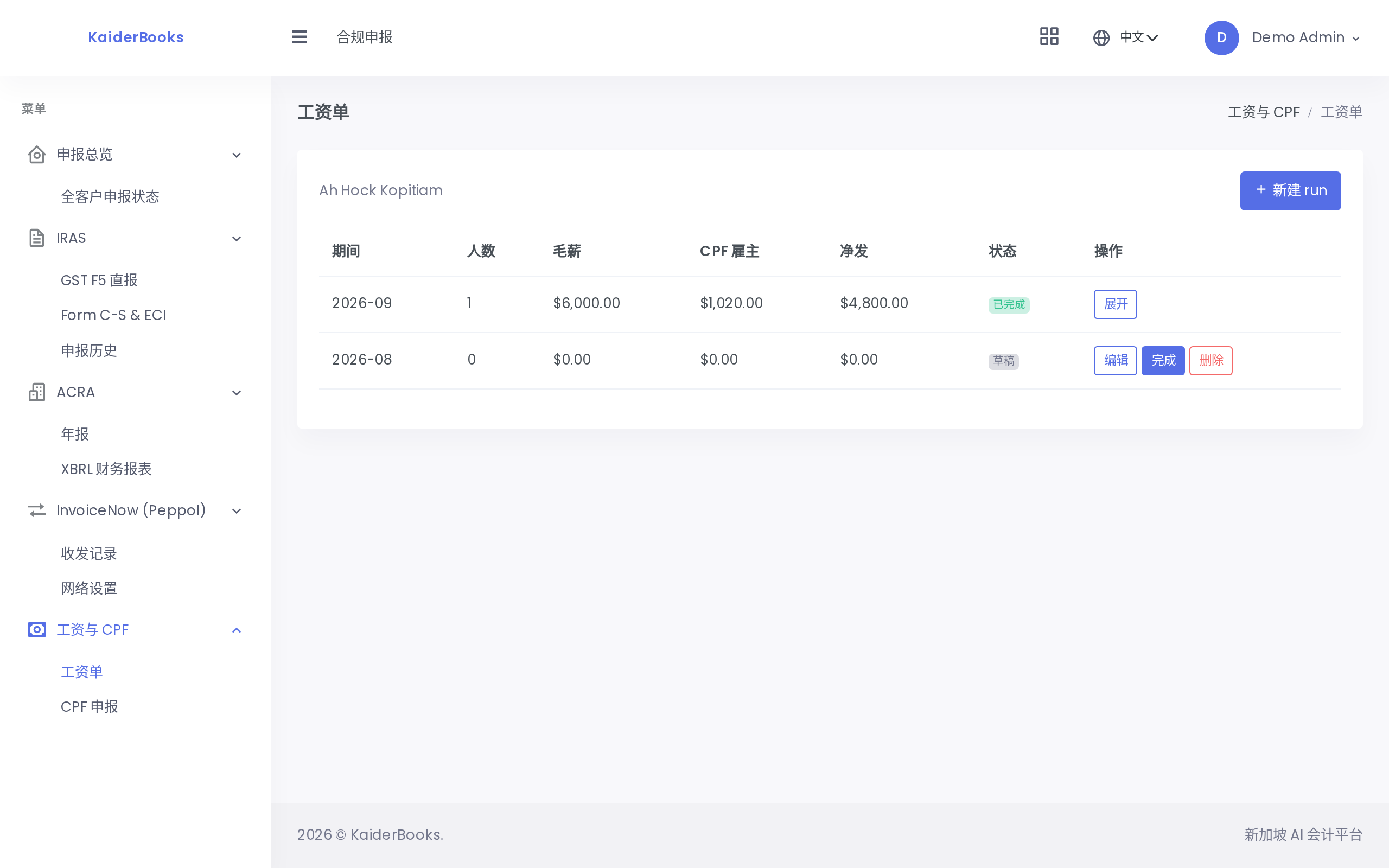
A run is one month's payroll for the whole company. Creating it needs only the payroll period (a month, such as 2026-07).
A new run is a draft: employees can be added, figures changed, and the whole run deleted.
2. Entering payslips
Expand the draft run and click Add payslip — one row per employee.
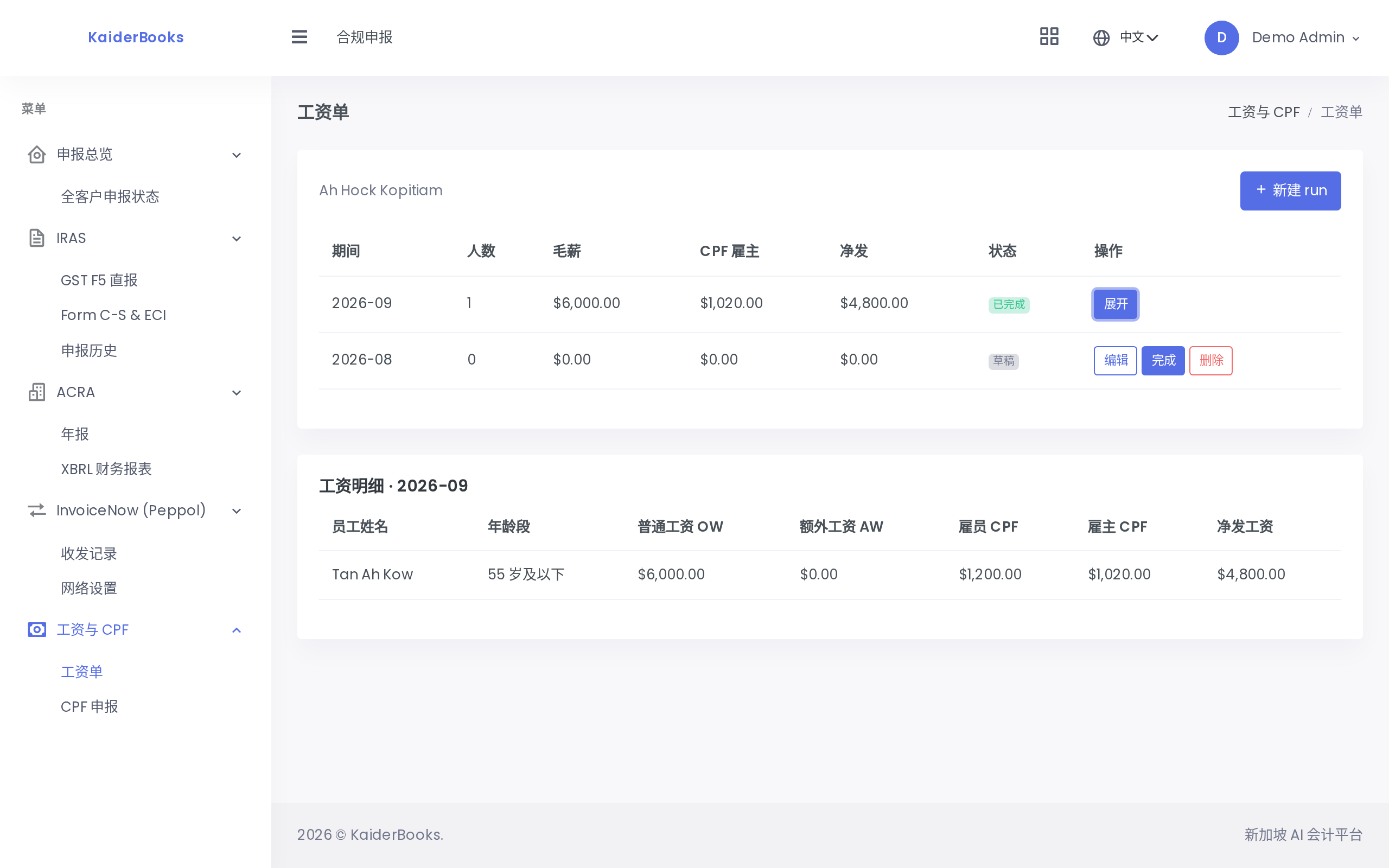
| Field | Notes |
|---|---|
| Employee name | Appears on the payslip and in the CPF submission record |
| Age band | Determines the CPF contribution rates — see below |
| Ordinary Wages (OW) | The month's regular salary, entered in dollars |
| Additional Wages (AW) | Bonuses and other non-recurring payments |
Why OW and AW are separate
CPF caps the two differently: Ordinary Wages are capped monthly, Additional Wages annually. Entering them separately is what lets the system apply the right basis — folding a bonus into OW produces the wrong contribution.
CPF is computed for you
As soon as OW and AW are filled in, the employee CPF, employer CPF and net pay appear on the row immediately — no rate tables to look up.
For an employee aged 55 or below on Ordinary Wages of $5,000.00:
| Item | Rate | Amount |
|---|---|---|
| Employee CPF (deducted from pay) | 20% | $1,000.00 |
| Employer CPF (borne by the company) | 17% | $850.00 |
| Net pay | $4,000.00 |
There are five age bands: 55 and below / 55–60 / 60–65 / 65–70 / above 70. Contribution rates step down as age rises, and the system applies the rates for whichever band you select — your only job is to pick the right one.
The wrong age band means the wrong contribution
This is the most common payroll error. When an employee's birthday moves them into a new band, remember to update it in the following month's run.
Click Save on each row. Payslips under a draft run can be edited or deleted at any time.
3. Completing the run: posting the payroll journal
Once everyone is entered and the figures check out, click Complete on the run. The confirmation explains what follows: the payroll journal is generated and posted, and the run and its payslips become read-only.
The journal that gets written balances. Using the same $5,000.00 employee as the example (in practice it is the total across everyone):
| Account | Debit | Credit |
|---|---|---|
| 5100 Salaries and wages | 5,000.00 | |
| 5200 Employer CPF | 850.00 | |
| 2310 Salaries payable | 4,000.00 | |
| 2300 CPF payable | 1,850.00 |
How to read it:
- The debits are the company's employment cost for the month — the wages themselves plus the employer's share of CPF
- The credits are two amounts not yet paid out — the net pay owed to employees, and the total owed to the CPF Board (the $1,000.00 deducted from the employee plus the employer's $850.00 = $1,850.00)
When the money actually leaves the bank, those two payable accounts are cleared.
Completing a run cannot be undone
Once complete, both the Complete and Delete buttons disappear and the payslips can no longer be edited. Corrections require reversing the payroll journal and re-entering it (see Manual journals and reversals). Only draft runs can be deleted.
4. Submitting CPF
Filing → Payroll → CPF.
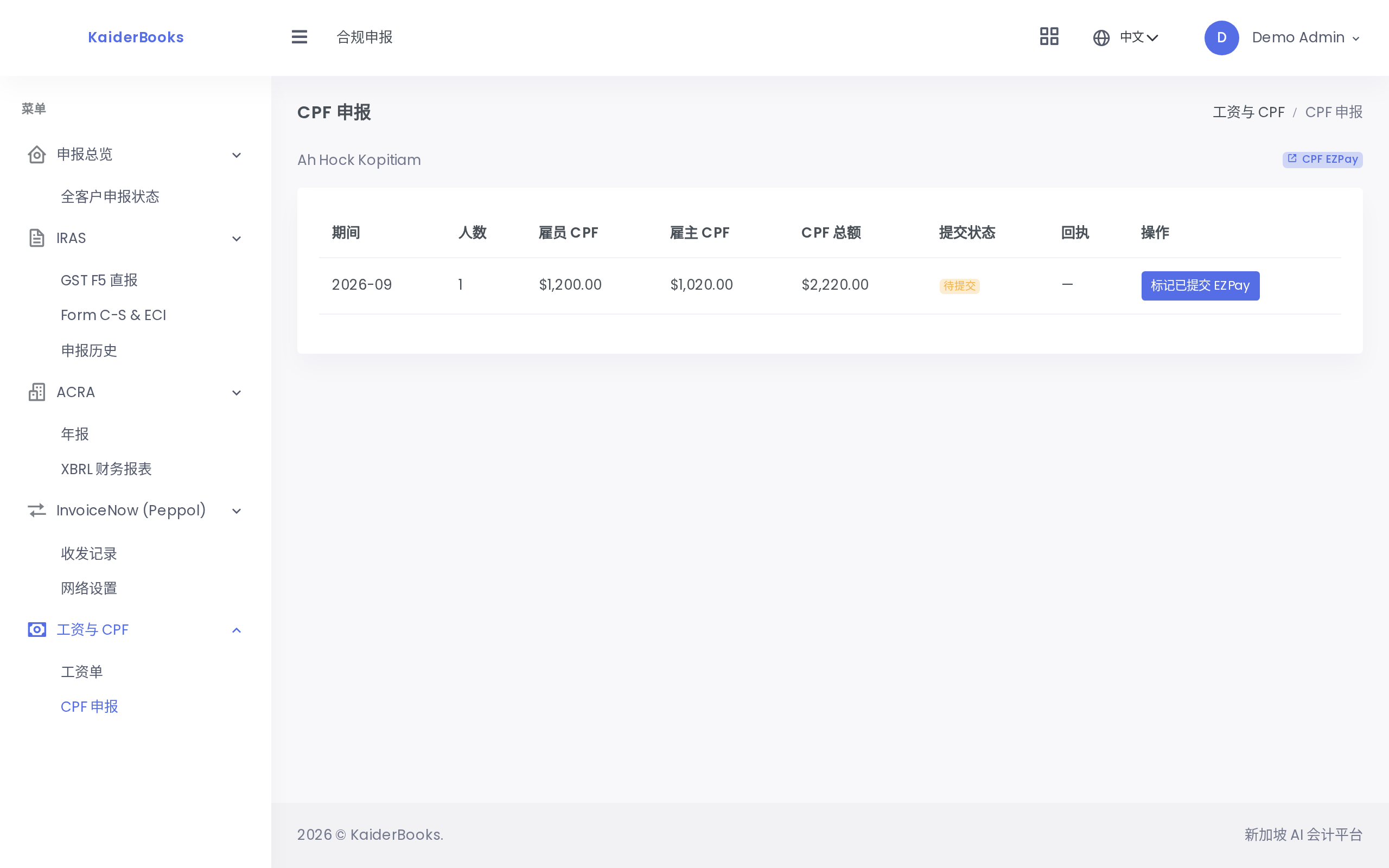
This page lists every completed payroll run (drafts do not appear), showing headcount, employee CPF, employer CPF, total CPF and submission status.
After paying through CPF EZPay, come back and click Mark submitted to EZPay on the row; the system records the submission with a reference number.
Rows that already hold a receipt no longer show the button — the status reads Submitted and the reference number appears — so a period cannot be marked twice.
This step records, it does not pay
Mark submitted to EZPay logs the submission inside KaiderBooks so it can be reconciled and reported to the client later. The actual payment still happens on CPF EZPay.
Next: Practice operations →