手册 v0.1.0 · KaiderBooks v2.0.0 · 2026-07-20
GST codes and F5 filing
In one sentence
Every invoice and bill carries a GST code as it is entered; at quarter end the system aggregates those codes into the 13 F5 boxes, and once you have checked them, three steps submit the return to IRAS.
1. Tax codes: where GST begins
A tax code is not a reporting label — it is the source of the numbers you file. Pick the wrong code on a document and the F5 boxes will be wrong too.
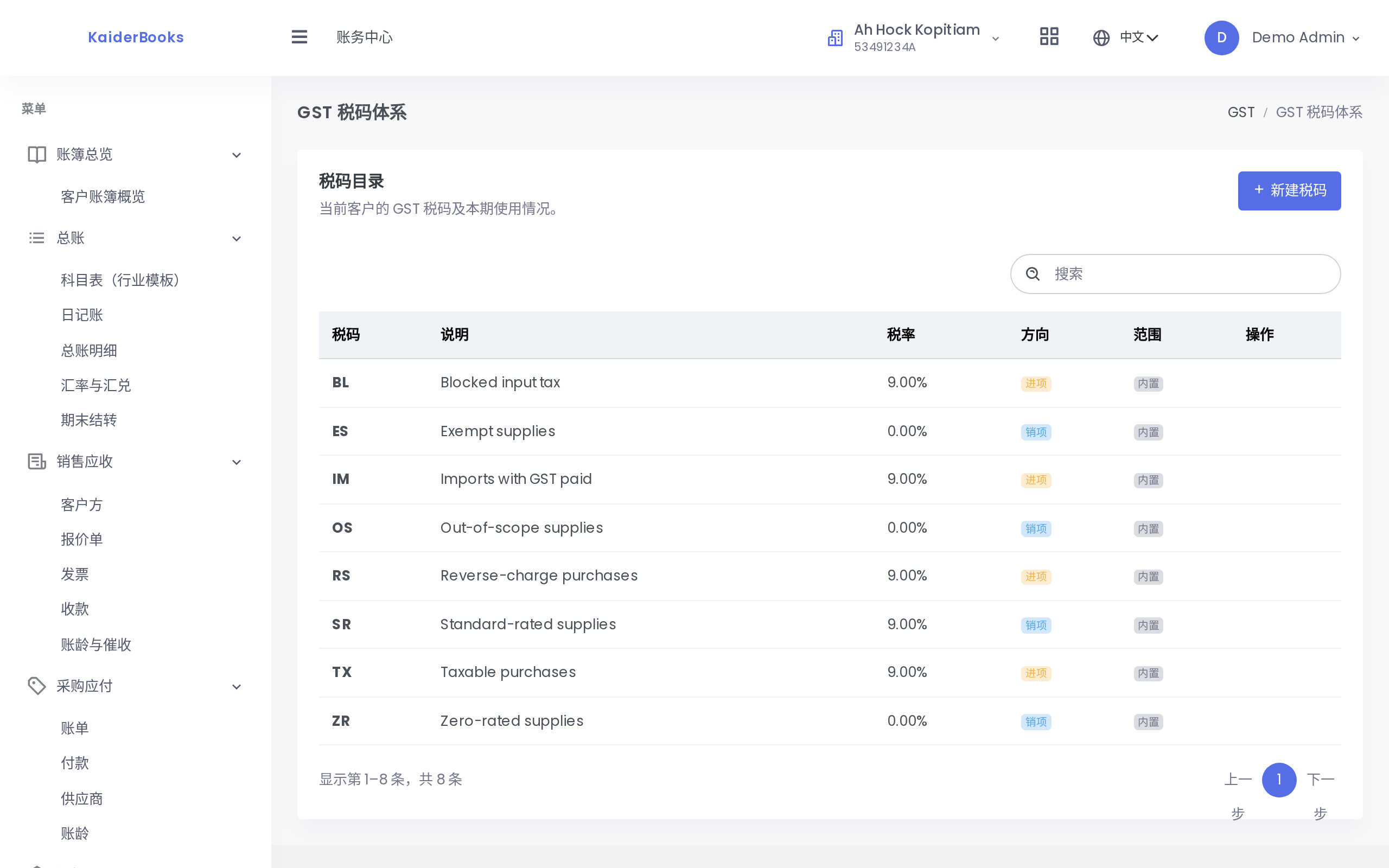
The common Singapore codes are built in and ready to use:
| Code | Meaning | Typical use |
|---|---|---|
| SR | Standard-rated output tax (currently 9%) | Most goods and services sold to local customers |
| ZR | Zero-rated | Exported goods, international transport |
| ES | Exempt supply | Certain financial services, sale and lease of residential property |
| TX | Standard-rated input tax (claimable) | Purchases from GST-registered suppliers |
Zero-rated and exempt are not the same thing
Both mean the customer is charged no tax, but they differ for you: zero-rated supplies are taxable supplies, so related input tax remains claimable; input tax attributable to exempt supplies is not claimable. The distinction changes how much you can recover — do not use them interchangeably.
Creating your own codes
Built-in codes are read-only (their rows carry no edit or delete buttons). When the business needs a finer breakdown, click New tax code:
| Field | Notes |
|---|---|
| Code | Uppercased automatically. Cannot be changed after saving (the field is disabled when editing) — to change it, delete and recreate |
| Description | For your colleagues: say when this code applies |
| Rate | Enter a percentage: 9 means 9%, not 0.09 |
| Direction | Output (sales) / Input (purchases) / Not applicable |
| F5 box mapping | Comma-separated numbers, e.g. 1, 6 — the value goes to Box 1 and the tax to Box 6 |
The box mapping is the wiring between a code and the return. Get it wrong and every document can be correct while the return is still wrong, so put a test document through any code you add.
2. F5 preview: check it before you file
Books → GST → F5 Filing Preparation.

1
The period is chosen by quarter, not by month
The period is a quarter dropdown (current or previous, such as 2026-Q3), not a month picker — GST is filed quarterly and the page follows suit. All 13 boxes are read-only: they are computed, not typed. To change a figure, change the document that produced it.
The conclusion sits at the bottom: net GST payable (Box 8 positive, you pay) or net GST refundable (Box 8 negative, IRAS pays you). Export to CSV from the top right to archive or to send the client for review.
How the figures are derived
Worth understanding — it tells you where to look when something disagrees.
The system scans every posted and reversed journal line in the period (the same basis as Manual journals and reversals section 6 — counting posted only would strand the negative half of a reversal pair), then decides each line's box from two things:
| Account the line sits on | What it represents | Which box |
|---|---|---|
| 2200 GST control | The tax amount | Output tax to Box 6, input tax to Box 7 |
| Any other account (revenue, expenses…) | The net-of-tax value | Box 1 / 2 / 3 for output codes, Box 5 for input codes, per the code's box mapping |
Two boxes are pure arithmetic:
- Box 4 = Box 1 + Box 2 + Box 3 (total taxable supplies)
- Box 8 = Box 6 − Box 7 (net payable or refundable)
When the numbers disagree, check in this order
- Confirm the period is right (quarter, not month)
- Filter the journals by date range and confirm everything in the period is posted — drafts do not reach the F5
- Check the tax code on each document (SR / ZR / ES are the easiest three to confuse)
- For a custom code, go back and verify its box mapping
3. Submitting to IRAS
Once the preview checks out, file from Filing → IRAS → GST F5.

1
Confirm which client you are filing for
Choose the client and period at the top, then work through three steps:
| Step | Button | What it does |
|---|---|---|
| 1 | Run validation | Checks the period's data is complete enough to file |
| 2 | Authorise filing | Confirms you are filing on the client's behalf |
| 3 | Submit to IRAS | Creates the formal filing record and reference number |
There is no second confirmation dialog
Completing the three steps is the submission — no "are you sure?" appears in between. Be certain before clicking step three: the first two steps are procedural, the third is the one that commits.
On success a green receipt appears with the reference number and submission timestamp, and the action button greys out.
One submission per period
Each client and period holds a single filing record. Revisiting the page after filing shows the earlier receipt instead of letting you file again — to amend a submitted figure, use the IRAS correction process; the system will not overwrite the historical record.
4. Filing history
Filing → IRAS → History lists every submission: client, type, period, submitted at, submitted by, reference number and status. The table has a search box — searching by client name or period is quickest.
The reference number is your evidence in any conversation with IRAS, so this is where to look when a client asks whether a quarter was filed and for how much.
Next: Fixed assets →