手册 v0.1.0 · KaiderBooks v2.0.0 · 2026-07-20
Create a client and engagement
In one sentence
Register the client company first — every accounting record belongs to one — then attach an engagement that records what you charge and how often.
1. Why the client comes first
KaiderBooks is multi-client by design: every journal, invoice and ledger account belongs to a specific client. Without one, nothing in Books can be created — the "New" buttons stay disabled.
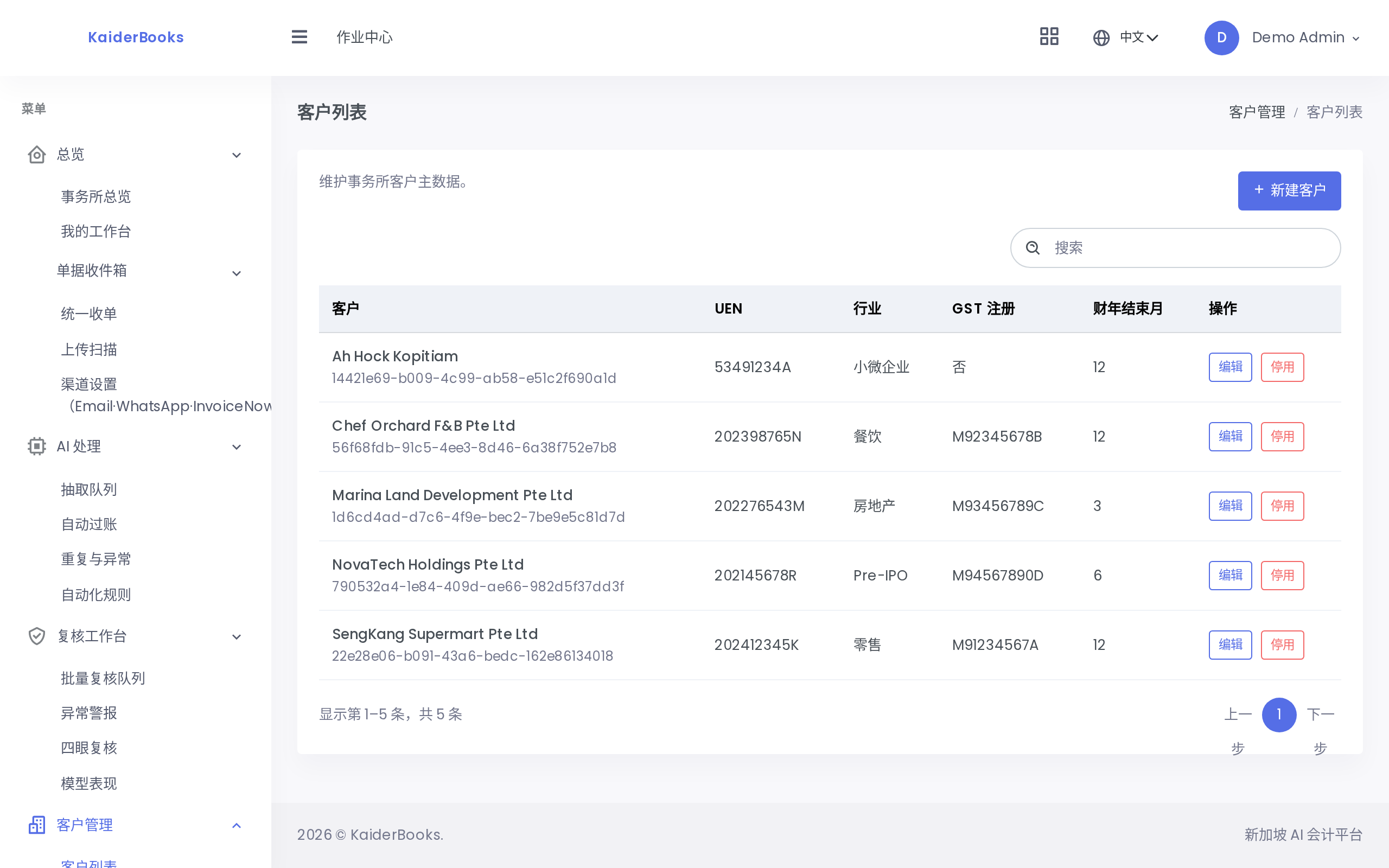
The list shows every client your firm manages, with UEN, industry, GST registration status and financial year-end.
2. Creating a client
Click New Client in the top right.
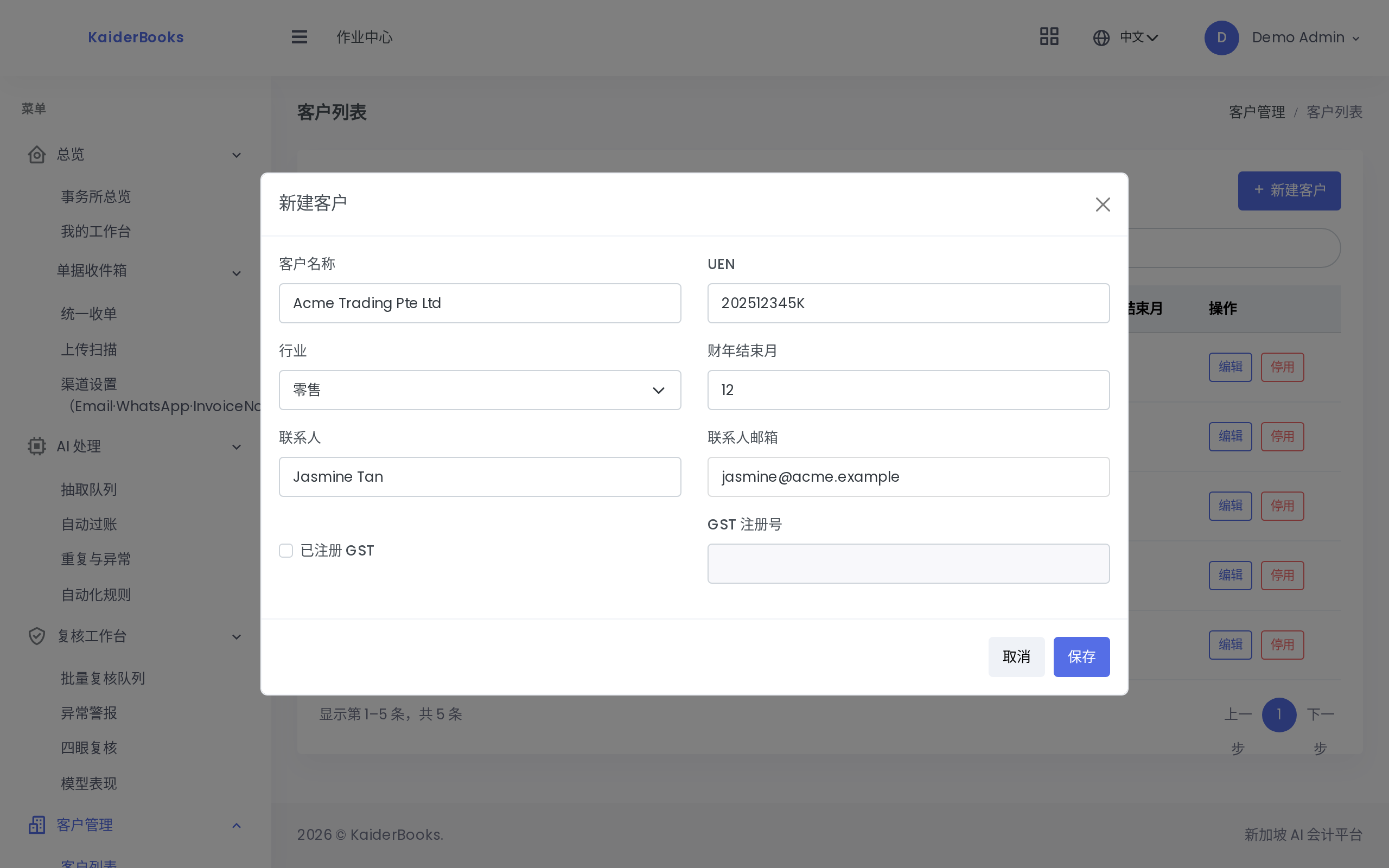
1
Registered company name, matching ACRA
2
An invalid UEN is flagged immediately, before you submit
3
Financial year-end month; drives reporting and filing periods
| Field | Required | Notes |
|---|---|---|
| Client name | ✅ | Registered company name, matching ACRA — it appears on reports and filings |
| UEN | ✅ | Singapore Unique Entity Number. An invalid format is flagged immediately |
| Industry | Retail / F&B / Real estate / Micro / Pre-IPO / Other; drives industry templates in Insights | |
| FY end month | ✅ | 1–12. Determines reporting periods and ECI / Form C-S timing |
| Contact name / email | Your counterpart at the client; used by communication records | |
| GST registered | Enables the GST registration number field; unregistered clients invoice without output tax |
UEN validation
Three formats are accepted: 9 digits + 1 letter (e.g. 202512345K), 8 digits + 1 letter, and a T/S/R-prefixed 10-character form. An invalid value shows Invalid Singapore UEN under the field.
On save a "Client created" toast appears and the list refreshes immediately.
Deactivate is not delete
Deactivate is a soft delete: the client disappears from the list but every journal and invoice is retained for audit. The same UEN can be registered again afterwards.
3. Right after creating a client: the chart of accounts is empty
This is the most common trap. A new client has no ledger accounts, so invoicing or posting a journal fails with "Required system account is missing".
Go to Books → General Ledger → Chart of Accounts and create these first (the codes matter — the system looks accounts up by code):
| Code | Name | Type | Used by |
|---|---|---|---|
| 1000 | Cash on hand | Asset | Default counter-account for receipts/payments |
| 1010 | Bank | Asset | Linked to bank accounts |
| 1100 | Trade receivables | Asset | Invoice posting |
| 1490 | Accumulated depreciation | Asset | Fixed asset depreciation |
| 2000 | Trade payables | Liability | Bill posting |
| 2200 | GST control | Liability | Output and input tax |
| 2300 / 2310 | CPF payable / Salaries payable | Liability | Payroll posting |
| 4000 | Sales revenue | Revenue | Invoice line income |
| 5000 / 5100 / 5200 / 5600 | Expenses / Salaries / Employer CPF / Depreciation | Expense | Purchases, payroll, depreciation |
The chart is a tree — add child accounts under any account for finer analysis.
4. Attaching an engagement
Go to Practice → Clients → Engagements and click New engagement.
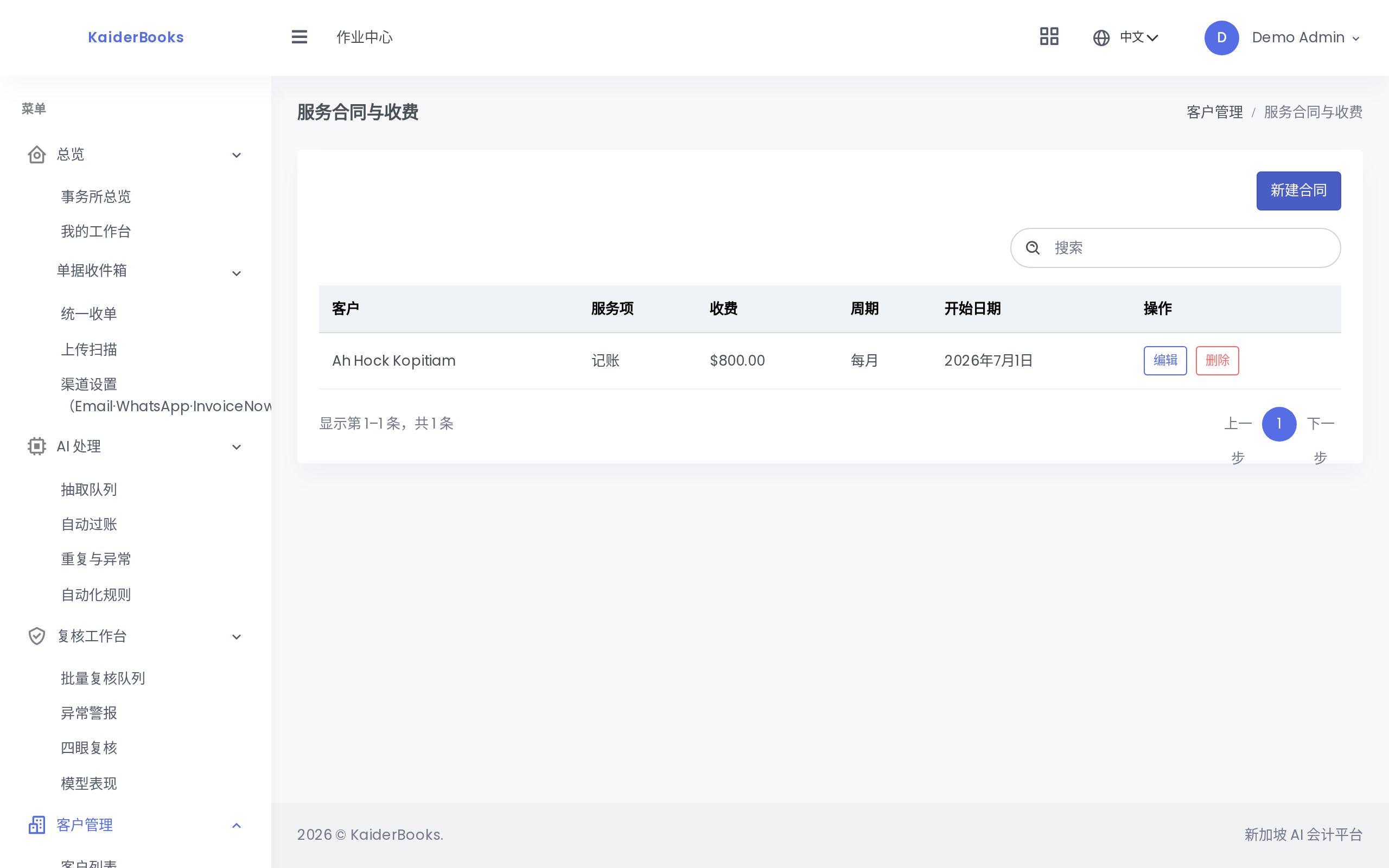
| Field | Notes |
|---|---|
| Client | Fixed once saved (disabled when editing) — create a new engagement to change it |
| Service | Bookkeeping / GST / Tax / Payroll / Secretarial / Audit support |
| Fee | Entered in dollars, stored internally in cents |
| Billing cycle | Monthly / Quarterly / Yearly |
| Start / end date | Leave the end date empty for an open-ended engagement |
| Status | Active / Paused / Ended |
Engagements feed the time-and-billing view and define the scope of work you manage for that client.