手册 v0.1.0 · KaiderBooks v2.0.0 · 2026-07-20
Fixed asset register and depreciation
In one sentence
Register anything that will be used for years as a fixed asset; the system works out the straight-line monthly charge, and one click a month posts the depreciation journal for you.
1. Registering an asset
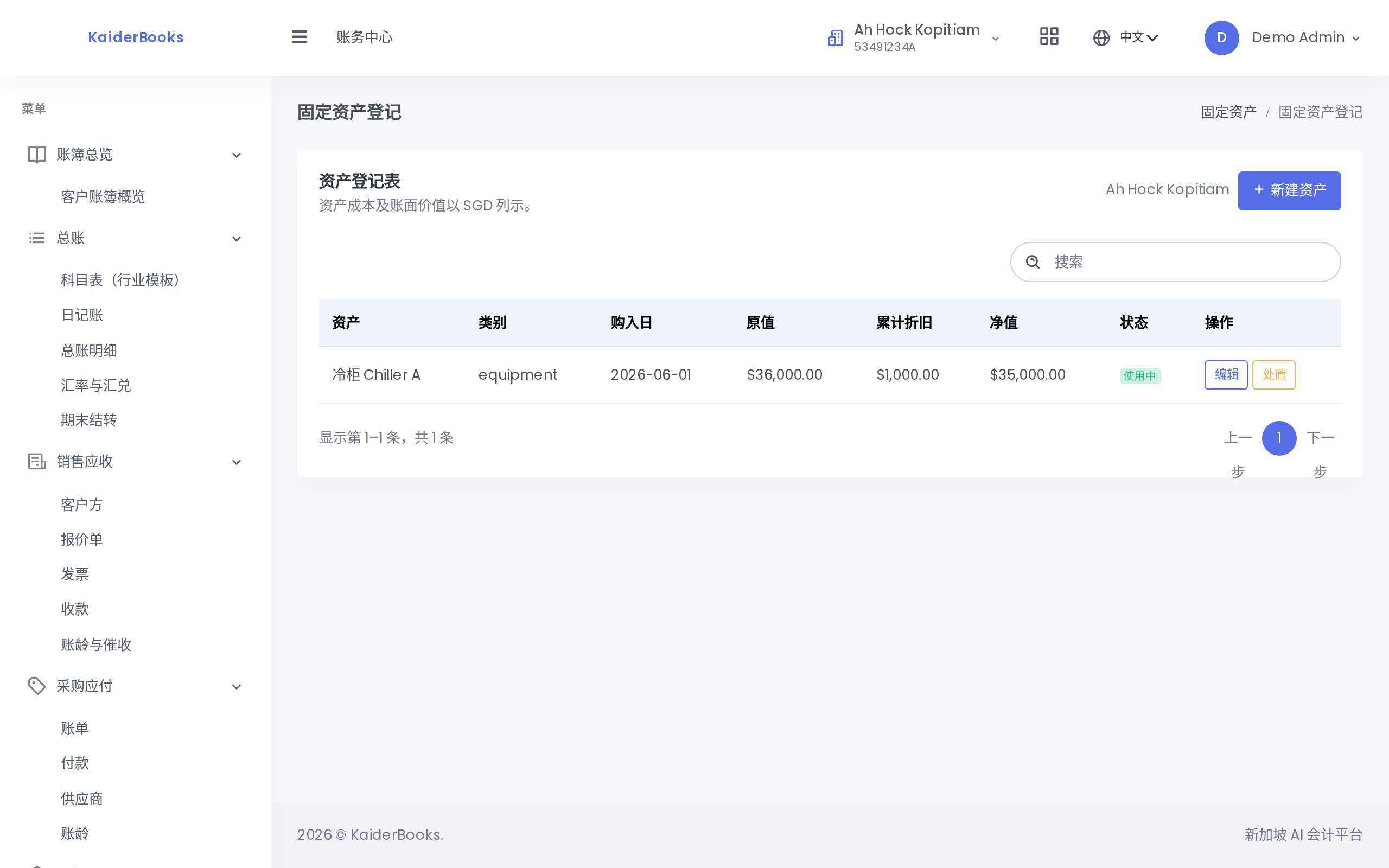
Books → Fixed Assets → Asset Register, then click New asset.
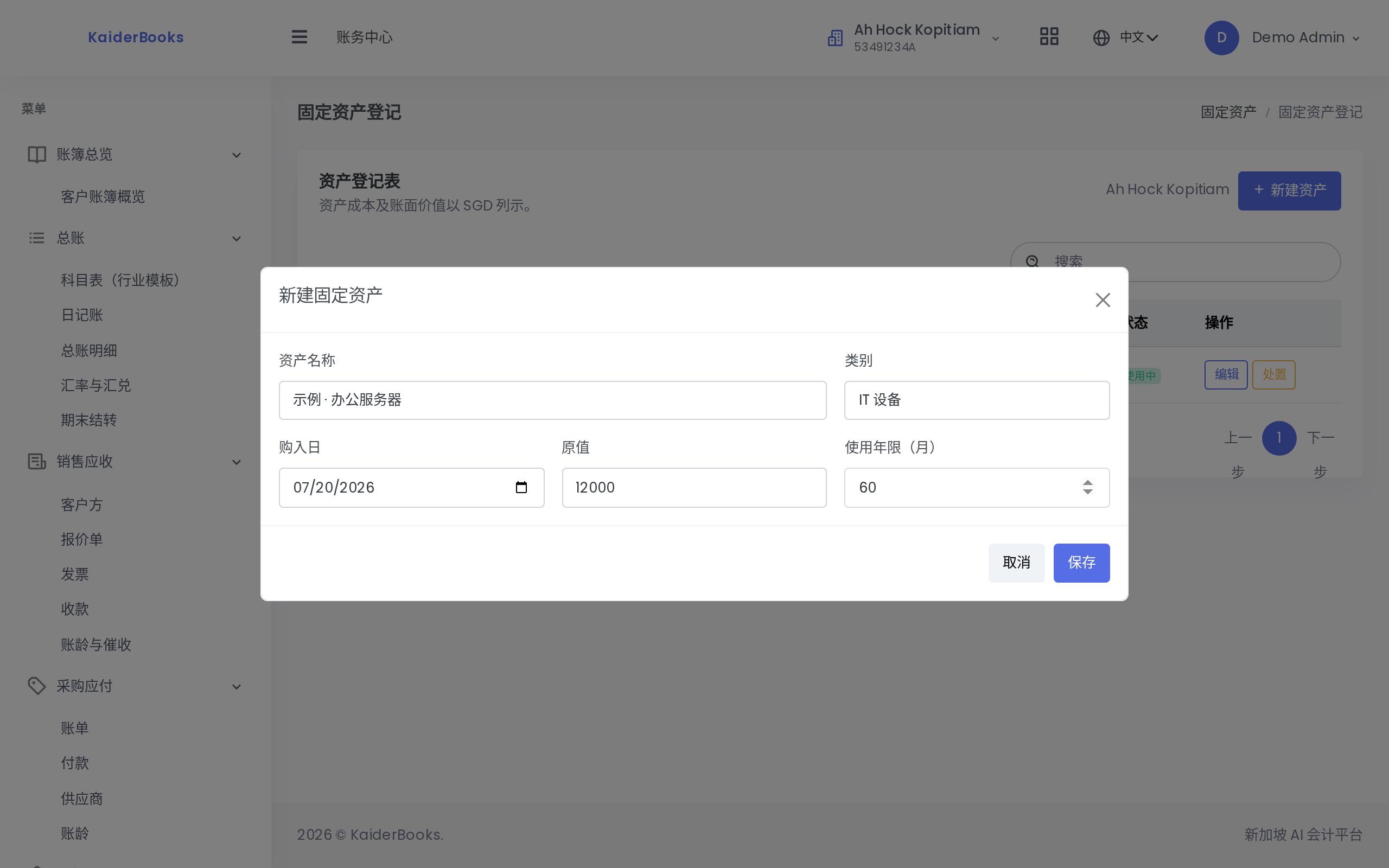
1
Enter the original cost in dollars
2
Useful life in months; monthly depreciation = cost ÷ months
| Field | Notes |
|---|---|
| Asset name | Be specific — this is how you will identify it at stocktake, e.g. "Reception laptop, ThinkPad X1" |
| Category | Your own grouping: IT equipment, office furniture, vehicles |
| Purchase date | The date on the supplier invoice |
| Original cost | Acquisition cost excluding claimable GST, entered in dollars |
| Useful life (months) | How many months it is expected to serve — 60 means five years |
These fields lock once depreciation starts
After the first depreciation charge is posted, cost, purchase date and useful life can no longer be changed (the form says so). Changing them would leave the posted depreciation journals inconsistent with the asset. Getting the numbers right at registration is far cheaper than fixing it later.
2. How the monthly charge is calculated
The system uses straight-line depreciation, charged monthly, from a single formula:
Monthly charge = original cost ÷ useful life in months
For a $12,000.00 server over 60 months:
$12,000.00 ÷ 60 = $200.00 per month
There is no residual value, no accelerated method and no pro-rating by day — the same amount every month until the asset is fully depreciated.
3. Charging depreciation each month
Books → Fixed Assets → Depreciation.
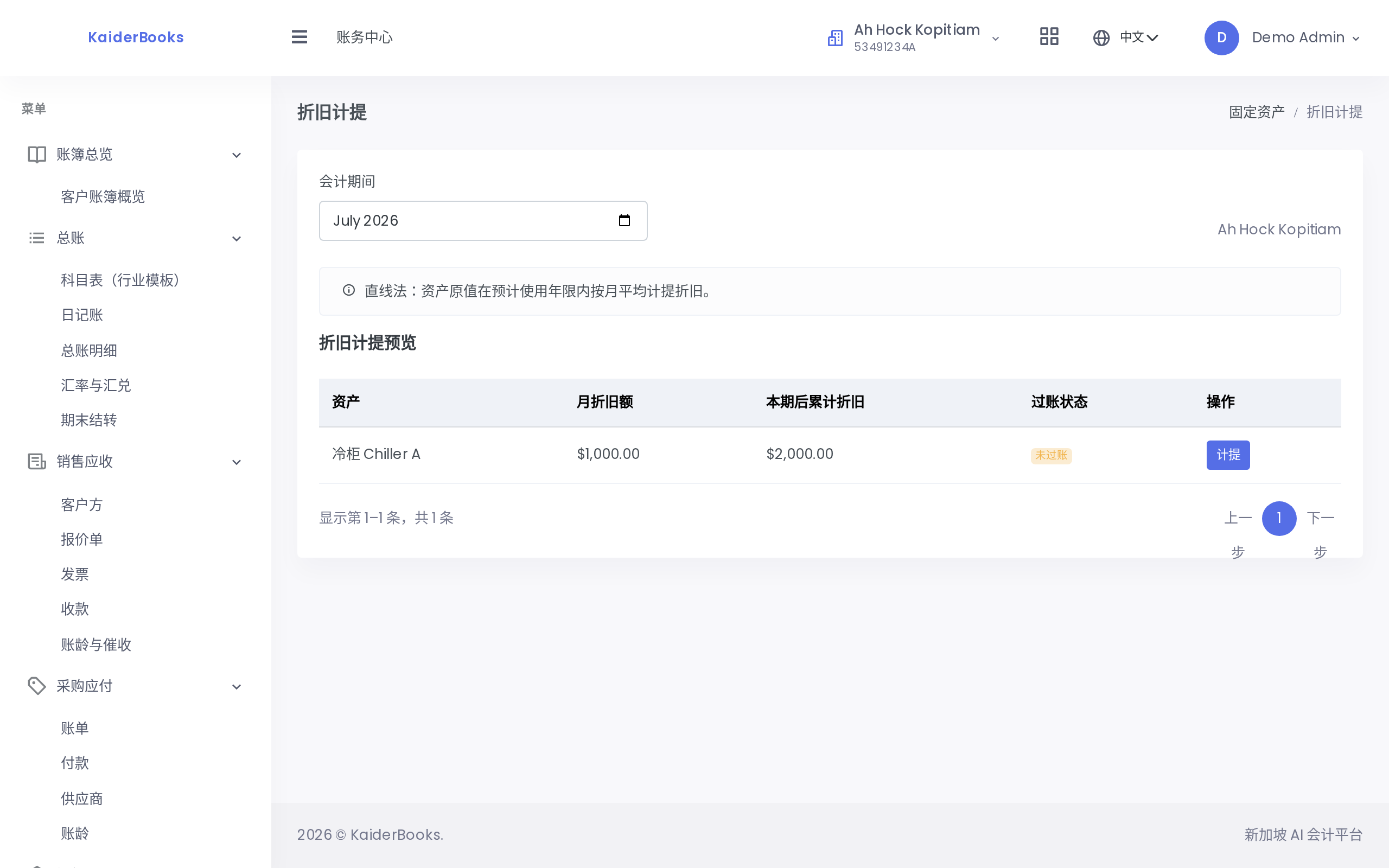
Pick the accounting period (a month) at the top and the page previews the charge for every asset: the monthly amount, the accumulated depreciation after this run, and the posting status.
When it looks right, click Post on the row. The system writes this journal:
| Account | Debit | Credit |
|---|---|---|
| 5600 Depreciation expense | 200.00 | |
| 1490 Accumulated depreciation | 200.00 |
The journal carries the source Depreciation, so it is easy to spot when filtering the journal list by source — and you should never enter it by hand as well.
Once posted, the row moves from Unposted to Posted, shows the voucher number, and the button greys out: the same period cannot be charged twice. To run the next month, move the period forward and repeat.
Put depreciation in your month-end checklist
Skipping it overstates the month's profit. Make it part of the close: charge depreciation → review the trial balance → lock the period. See Period close and locking.
4. The three asset states
| Status | Meaning |
|---|---|
| In use | Active; depreciation continues each month |
| Fully depreciated | Accumulated depreciation equals cost; no further charge arises |
| Disposed | Sold or scrapped; out of the active register |
Disposal
When an asset is sold or scrapped, click Dispose on its row and confirm. Afterwards the row offers neither Edit nor Dispose — it has reached its final state.
When deletion is still possible
The Delete button appears only while accumulated depreciation is zero — that is, the asset has never been depreciated.
The reasoning is direct: once depreciation has been charged, journals exist against the asset, and deleting it would leave them stranded. So:
- Registered by mistake, never depreciated → delete and re-register
- Already depreciated → dispose; deletion is not available
Next: Inventory and costing →