手册 v0.1.0 · KaiderBooks v2.0.0 · 2026-07-20
Supplier to payment
In one sentence
Register the supplier, enter a bill when their invoice arrives, approve it (which posts a journal including input GST), then allocate your payment against it — the mirror image of the sales chain, with debits and credits the other way round.
1. The chain at a glance
| Step | You do | The system does | Document status |
|---|---|---|---|
| 1 | Create a supplier | Stores a contact (kind = supplier) under this client | — |
| 2 | Enter a bill | Saves a draft; nothing hits the ledger | Draft |
| 3 | Review, then Approve & Post | Assigns the formal bill number and posts the journal | Awaiting payment |
| 4 | Pay, record a payment and tick the bill | Posts the payment journal and updates the bill | Partial / Paid |
Step 3 is the point of no return
Before Approve & Post a bill is a draft you can freely edit or delete. Once posted it has a formal number and a journal behind it, so it can only be voided (which posts a reversing journal) — never edited.
2. Suppliers
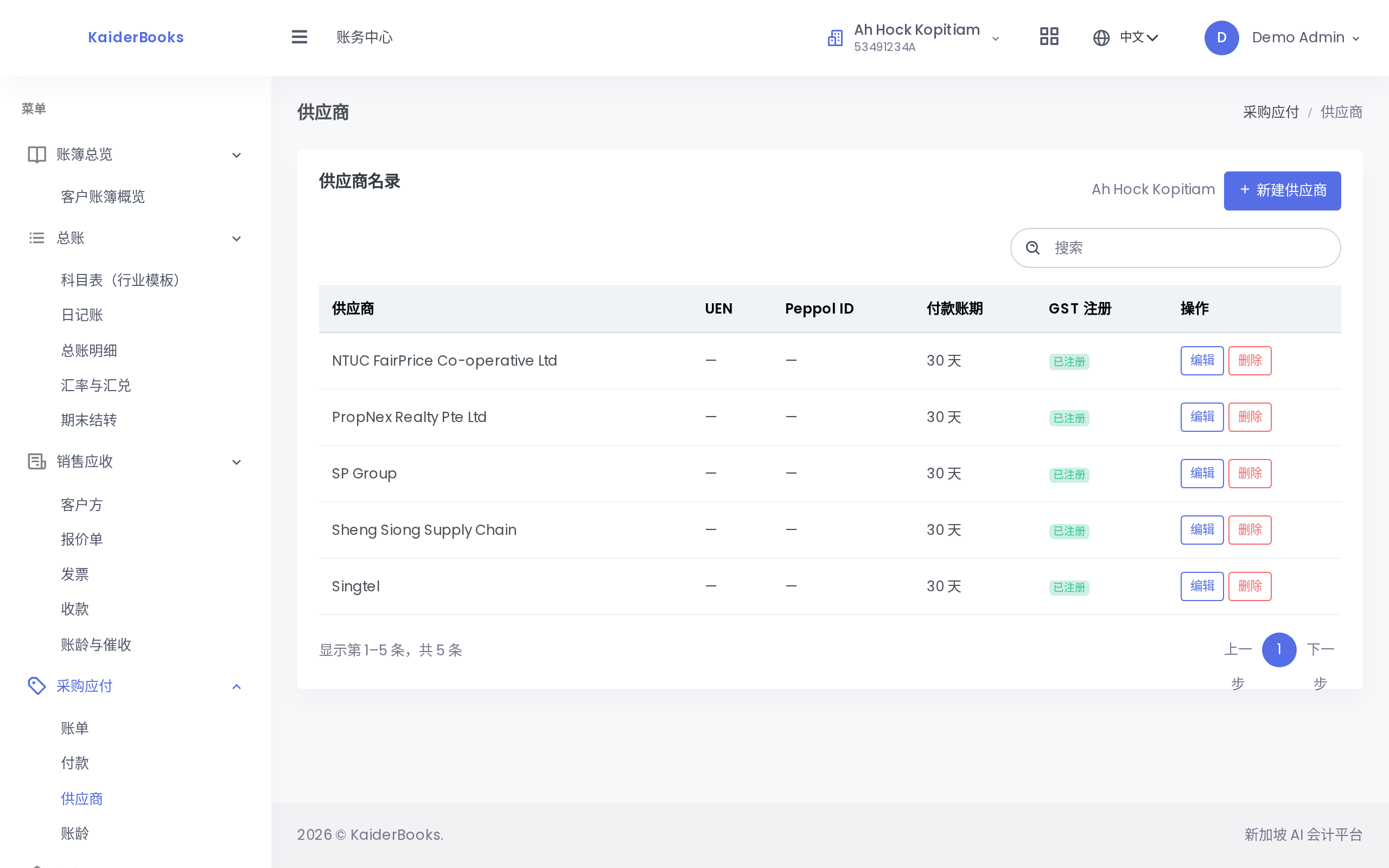
A supplier is a contact record under the current client's books. You cannot raise a bill until one exists.
| Field | Required | Notes |
|---|---|---|
| Supplier name | ✅ | Shown on bills, aging and payments |
| UEN | Optional. If entered it must be a valid Singapore UEN; leave blank for overseas suppliers | |
| Peppol ID | Identifier on the e-invoicing network | |
| Payment terms (days) | Defaults to 30; used to derive bill due dates | |
| Email / phone / address | Contact details | |
| GST registered | Enables the GST registration number field |
Each row offers Edit and Delete. Deletion is a soft delete — historical bills and journals remain intact.
Supplier or customer?
Both are "contacts", separated by kind: invoices list only customers, bills list only suppliers. If a company both buys from and sells to your client, create two records or set the kind to both.
3. Entering a bill
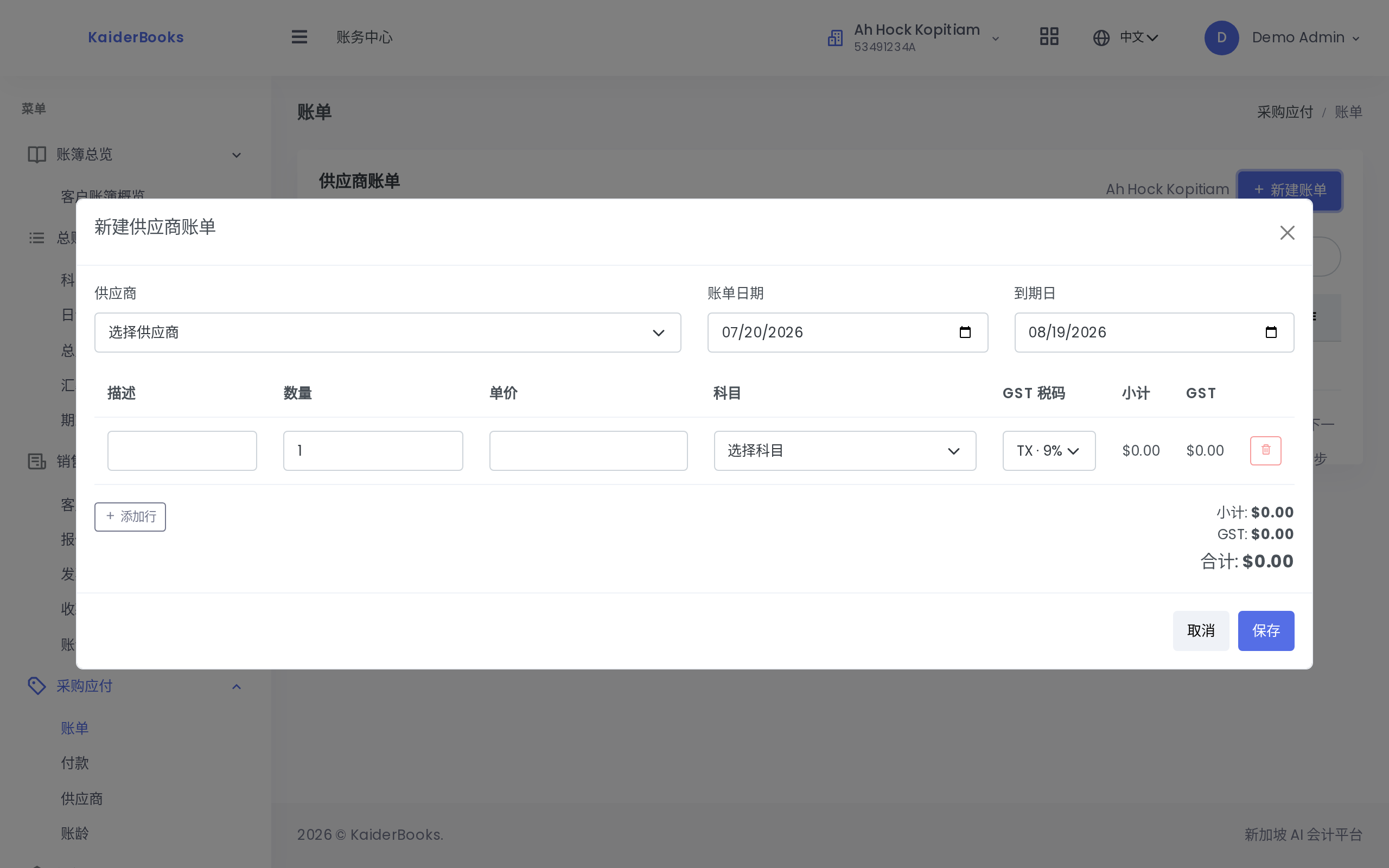
1
Pick the supplier; only supplier-type contacts are listed
2
Purchases default to TX (input tax), which is claimable
| Field | Notes |
|---|---|
| Supplier | Only contacts of kind supplier under this client are listed |
| Bill date / due date | The due date cannot precede the bill date; it drives aging buckets |
| Line items | Description, quantity, unit price (dollars), expense or asset account, GST code |
Line accounts are limited to expense and asset types (services go to expense, equipment to assets), and the GST code defaults to TX (input tax). That is the key difference from the sales chain: sales use SR for output tax, purchases use TX for input tax, both land in the 2200 GST control account, and the F5 return nets them off automatically.
For "1 × $300 at TX": subtotal $300.00, GST 9% = $27.00, total $327.00.
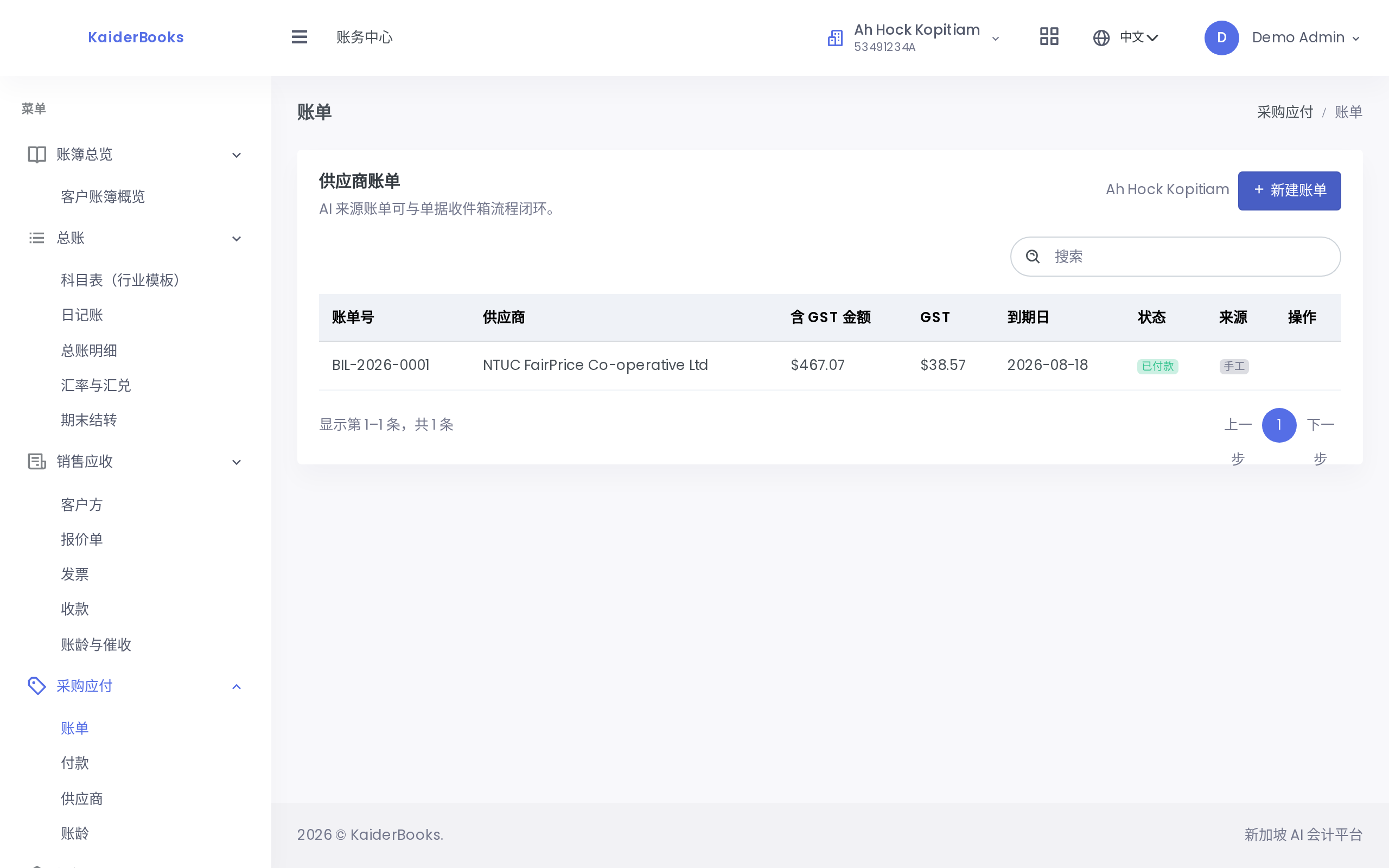
The Source column distinguishes manually entered bills from ones captured through the document inbox.
The journal produced by Approve & Post
For a $327.00 bill (subtotal $300 + GST $27):
| Account | Debit | Credit |
|---|---|---|
| 5000 Expenses | 300.00 | |
| 2200 GST control (input) | 27.00 | |
| 2000 Trade payables | 327.00 |
It mirrors the invoice journal exactly: receivables sit on the debit side there, payables on the credit side here; GST is credited there (output) and debited here (input).
Status decides what you can click
| Status | Available actions |
|---|---|
| Draft | Edit / Approve & Post / Delete |
| Awaiting payment | Void |
| Partial / Paid / Void | None |
4. Aging dashboard
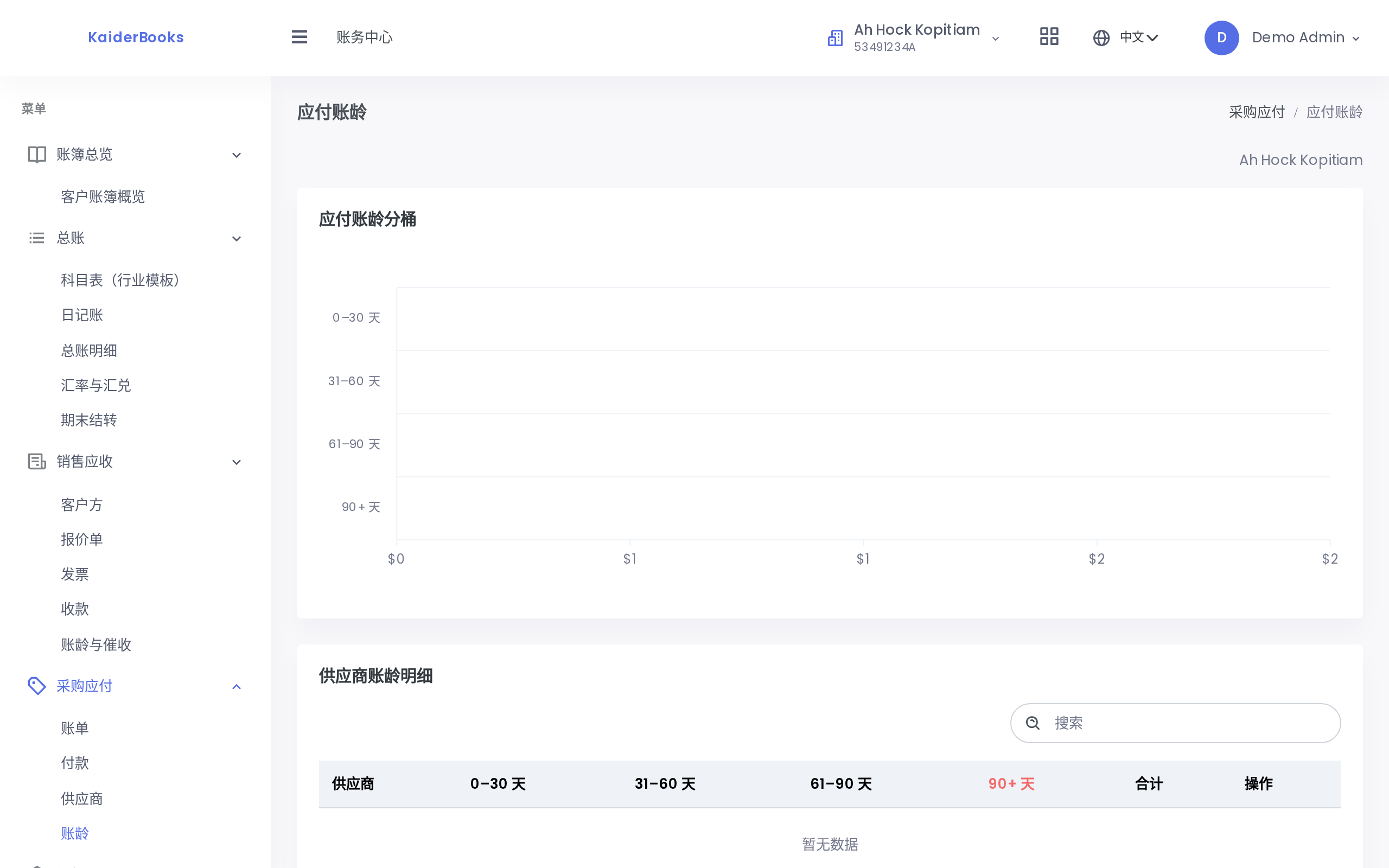
One row per supplier, split into four buckets by days overdue (0–30 / 31–60 / 61–90 / 90+). Rows with anything in 90+ turn red, flagging what to settle first.
The data comes from bills in Awaiting or Partial status, so a supplier disappears once everything is paid.
5. Payments and allocation
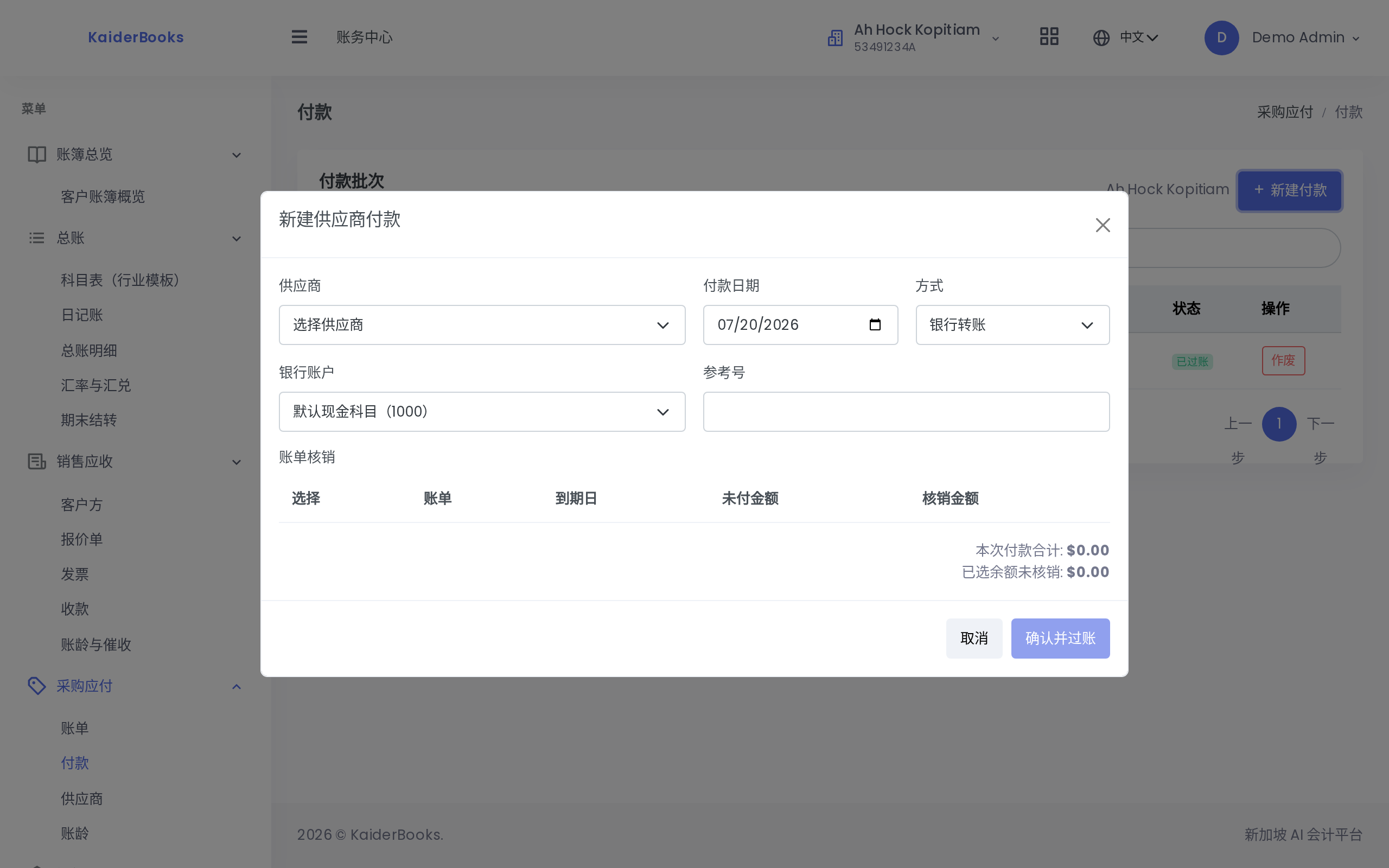
Choosing a supplier lists every awaiting or partially paid bill they have. Ticking one fills the amount with its outstanding balance; lower it for a part payment.
| Field | Notes |
|---|---|
| Method | GIRO / PayNow / Bank transfer / Cheque (bank transfer by default) |
| Bank account | Leave empty to use the default cash account (1000) |
| Reference | The bank reference — useful later during reconciliation |
Two totals sit at the bottom: the payment total (sum of ticked amounts) and the unallocated balance. If the latter turns red you have over-allocated and the confirm button stays disabled.
After posting, the bill's paid amount updates, its status becomes Partial or Paid, and AP aging drops accordingly.
Paid the wrong amount?
Click Void on the payment: the system reverses the payment journal, rolls the allocation back, and returns the bill to Awaiting. Every original record stays for audit.
6. Voiding and deleting
| What you want to undo | How | Result |
|---|---|---|
| An unposted draft bill | Click Delete in the list | The record disappears; no journal ever existed |
| A posted bill | Click Void in the list | A reversing journal is posted, the bill becomes Void, the original journal is marked reversed |
| A posted payment | Click Void in the payments list | Reverses the payment journal and rolls the allocation back; the bill returns to Awaiting |
Why posted documents cannot simply be deleted
Once a journal is in the ledger it is audit evidence and must leave a trail. The system replaces deletion with reversal: an equal-and-opposite journal cancels the effect while both entries are retained permanently, so anyone can see what was originally recorded and how it was corrected.