手册 v0.1.0 · KaiderBooks v2.0.0 · 2026-07-20
Sign in and Home
In one sentence
Sign in with the email and password your firm gave you, then pick a subsystem on the launcher — whichever matches what you are here to do today.
1. Signing in
Open https://books.chuhaisg.com and you land on the sign-in page.
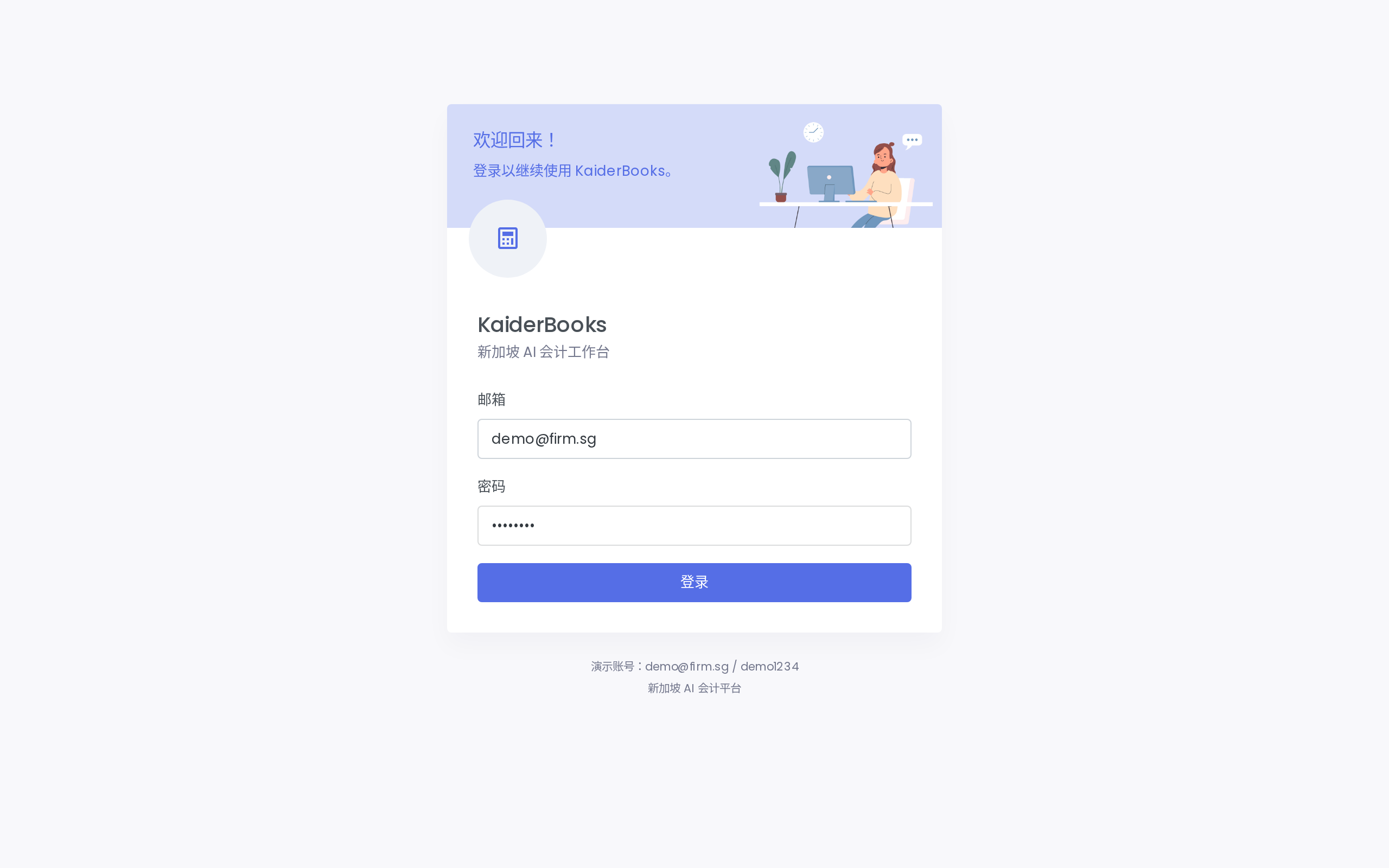
1
Enter your work email
2
Enter your password
3
Click to sign in
| Field | What to enter |
|---|---|
| The address your firm admin used when inviting you | |
| Password | The initial password from your admin on first sign-in — change it soon after |
The initial password is shown only once
When an admin invites you under Admin → Users, the system displays the initial password exactly once. If nobody wrote it down, the admin has to remove and re-invite you (a re-invite issues a fresh password; the account itself is not lost).
A wrong email or password shows a red message above the form. Repeated failures do not lock the account, but do ask your admin to confirm the email spelling.
2. What you see after signing in
You land on the launcher, where six subsystems each own one area of work:
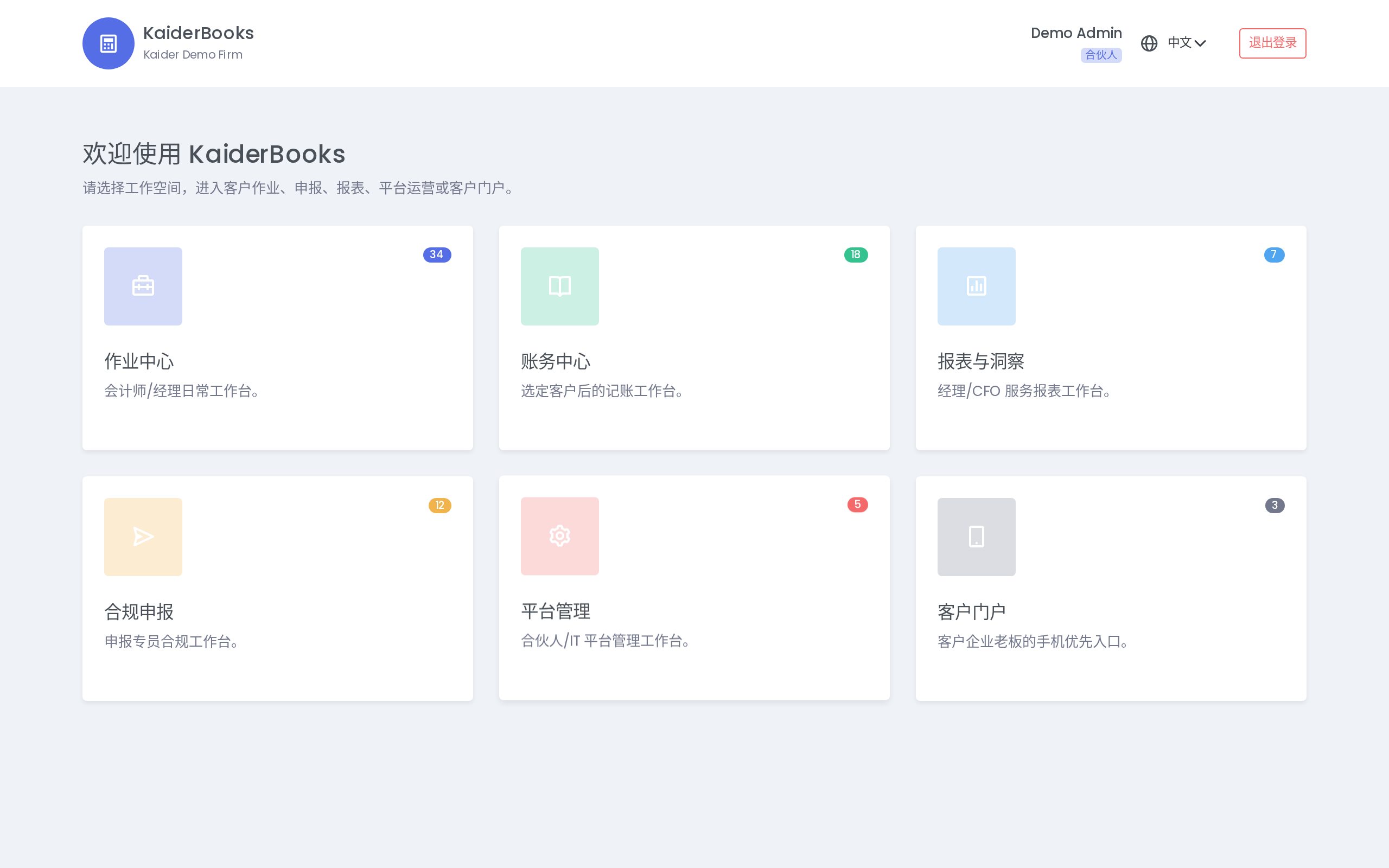
1
Day-to-day practice work starts here
2
Bookkeeping, invoicing and reconciliation live in Books
| Subsystem | Typical users | What it covers |
|---|---|---|
| Practice | Accountants, managers | Document intake, AI extraction review, tasks and timesheets, compliance calendar |
| Books | Accountants | The bookkeeping core: chart of accounts, journals, invoicing, bills, bank reconciliation, fixed assets, inventory, GST |
| Insights | Managers, partners | P&L, balance sheet, cash flow, plus client-facing management reports |
| Filing | Accountants, partners | GST F5, Form C-S, ACRA annual return, payroll and CPF submissions |
| Admin | Partners | Users and role permissions, API keys, webhooks, white-label branding, audit log |
| Portal | Client business owners | Upload receipts from a phone, see this month's profit, read reports |
The top bar lets you jump back to the launcher and switch the interface language (中文 / English) at any time.
3. Books and Insights need a client selected
Inside Books and Insights a client switcher appears in the top bar. Everything in these two subsystems belongs to the currently selected client, so picking the wrong one means posting to the wrong ledger. Glance at it before you start.
The other subsystems (Practice, Filing, Admin) work at firm level and have no switcher.
4. Your role decides what you can do
| Role | Roughly what it allows |
|---|---|
| Partner | Everything, including locking periods, editing the permission matrix, managing API keys |
| Manager | Nearly everything except firm-level settings; can lock periods and manage clients |
| Accountant | Day-to-day bookkeeping, invoicing, posting, filing — posting and reversal are gated by the permission matrix |
| Intern | Mostly read-only; can draft entries but not post them |
| Client | Portal only, limited to their own company's data |
If a button is disabled or you get a permission error, the permission matrix is the reason — ask a partner to enable that capability under Admin → Roles.