手册 v0.1.0 · KaiderBooks v2.0.0 · 2026-07-20
Tasks, timesheets and the review queue
In one sentence
How your own firm's work gets assigned, how many hours each person booked, and who signs off on what the AI extracted — all three live in the Practice subsystem, kept separate from client ledgers.
1. Tasks: the board and the list are one dataset
Tasks come in two views. The board suits a daily glance at progress; the list suits bulk edits and search. Both read and write the same records, so it makes no difference where you change something.
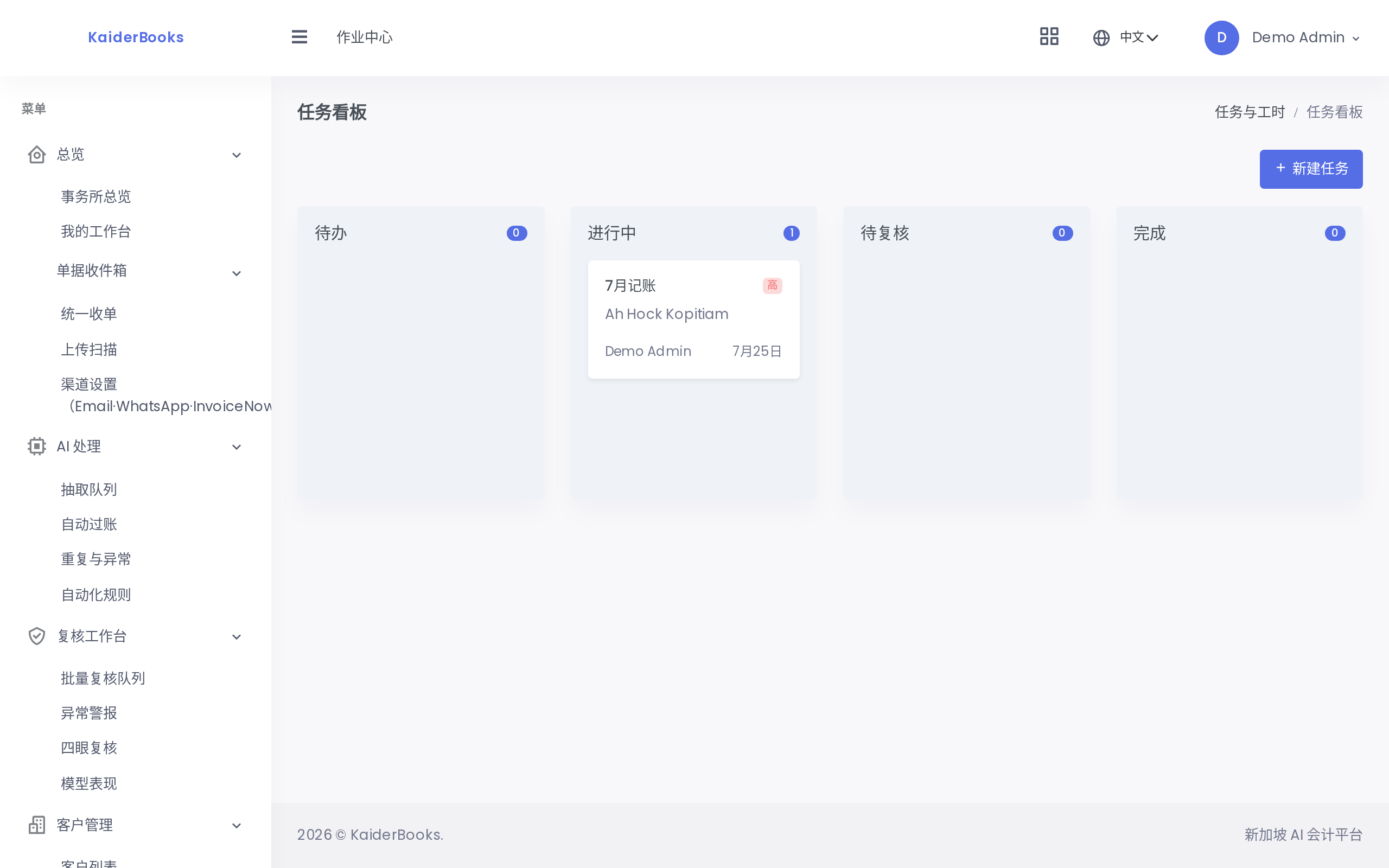
The four board columns are the four task statuses:
| Column | Meaning |
|---|---|
| To do | Not started |
| In progress | Someone is working on it |
| Review | Finished, waiting for a reviewer |
| Done | Reviewed and closed |
Drag a card to another column to change its status. In the list view each row carries a status dropdown that does exactly the same thing — dragging and selecting are two routes to one action.
Fields on a new task
| Field | Notes |
|---|---|
| Title | Required. State the work plainly |
| Client | Optional. Choose No client for internal work such as "tidy up templates" |
| Type | Bookkeeping / GST / Corporate tax / Secretarial / Other |
| Assignee | A team member, or leave Unassigned until you schedule it |
| Priority | High / Medium / Low |
| Due date | Shown on the card and in the list, so overdue work stands out |
2. Timesheets: a weekly grid
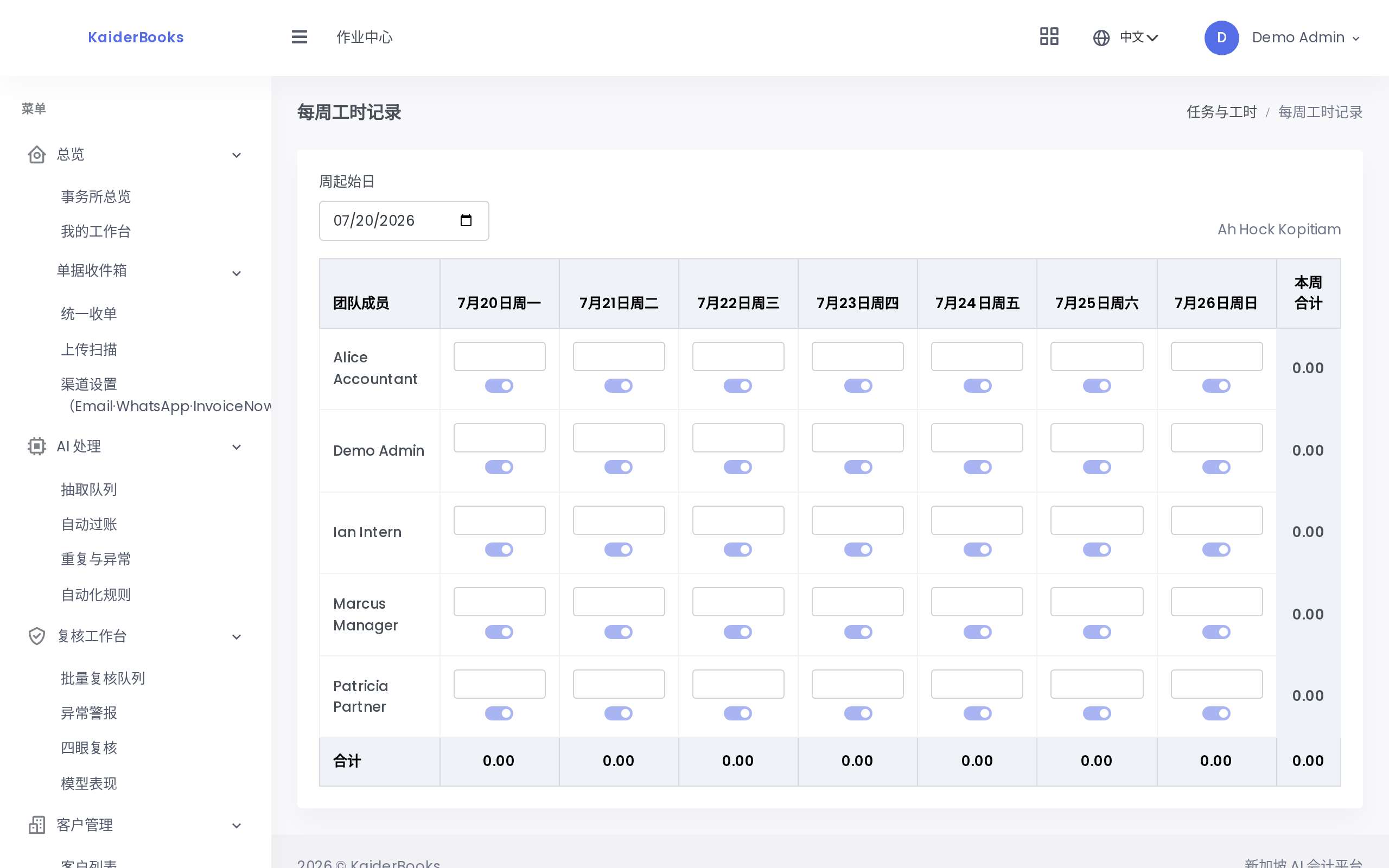
The timesheet is a grid: one row per member, one column per day from Monday to Sunday.
You do not need to hunt for the Monday in the Week starting picker — choose any day in the week and the view snaps to that week's Monday.
Three things to know before you fill it in
- It saves on blur. After typing a number you must click elsewhere so the field loses focus. Type and close the page immediately and the entry is not saved.
- Entering 0 deletes. To undo a day's hours, set that cell to 0 and the record is removed.
- The range is 0–24. Decimals are fine —
0.25is fifteen minutes. Anything outside the range raises the red message "Hours must be between 0 and 24" and nothing is saved.
Each cell also has a Billable toggle marking whether that time can be charged to the client. The toggle only becomes active once the cell already holds an entry — record the hours first, then decide whether they are billable.
Why careful time entry matters
Timesheets are not just a performance number: they decide how much the Time & Billing page can invoice. Hours nobody recorded are fees nobody collects.
3. Billing rates and raising an invoice
Rates are maintained under Team → Members, edited inline row by row and — again — saved on blur. Only partners and managers can change them; other roles see the figures but cannot edit.
The Time & Billing page takes the date range you choose, multiplies each member's billable hours by their rate, and totals it.
When the figures look right, click Generate invoice: pick a customer contact and the system creates a draft invoice and jumps to the Invoices page. It is only a draft — review the lines and click Send & Post to actually issue it (see Quote to cash).
Invoice generation needs accounts and tax codes in place
If the client's chart of accounts has no revenue account, or no output GST code is available, generation fails with "Select a contact and confirm a revenue account and output GST code are configured." See the account checklist in Create a client and engagement.
4. The review queue: AI extracts, a human signs off
Uploaded documents go through AI extraction, and the results never reach the ledger unattended — a person confirms them first.
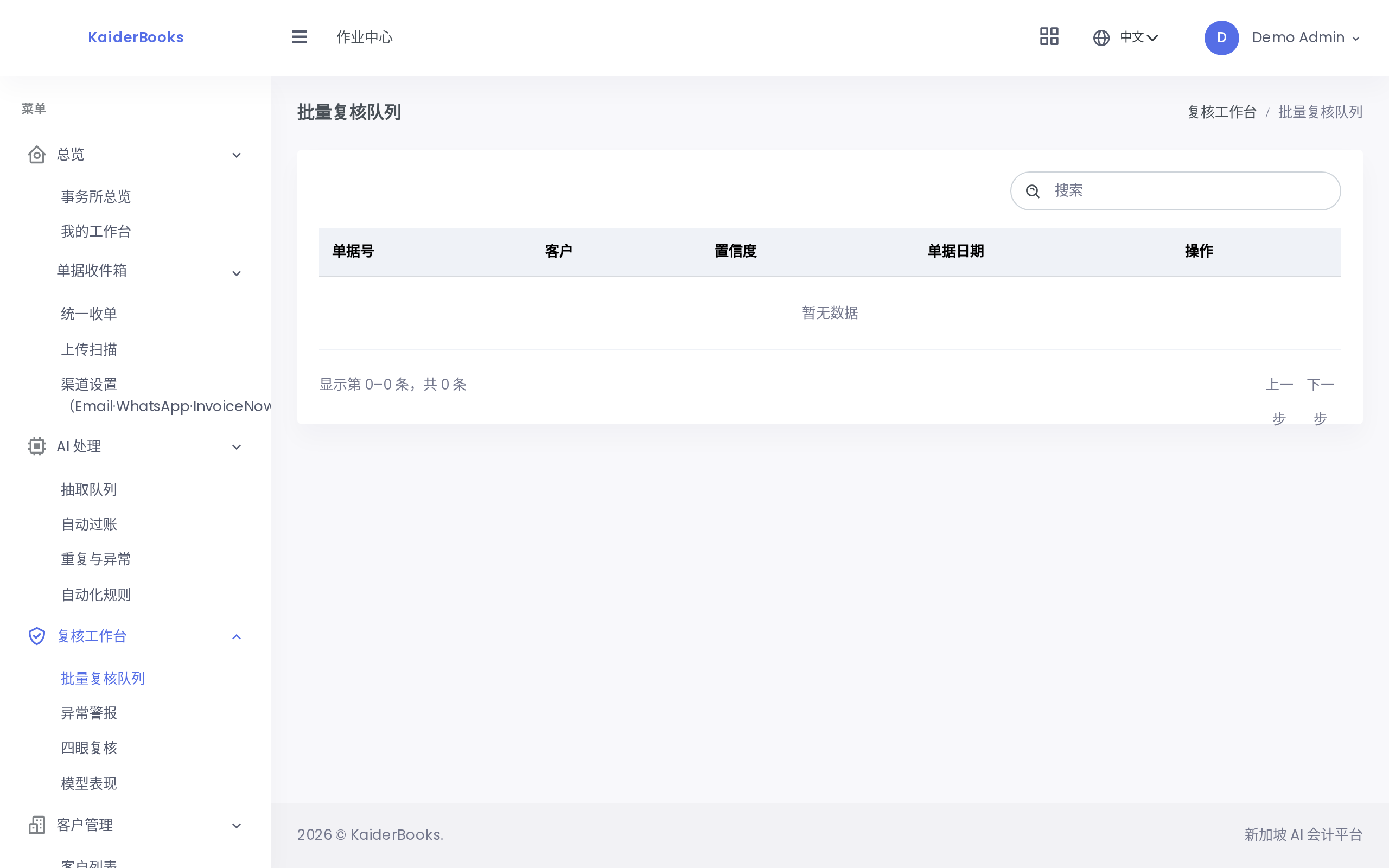
Each row in the queue offers two actions:
| Action | Effect |
|---|---|
| Confirm | Accepts the extraction as it stands |
| Reclassify | Opens a prompt for your reason (e.g. "belongs in office expenses"); the item is then marked Reclassified |
Four-eyes review
Escalated items land on the Second review page, to be handled by a different person — a notice at the top of that page states it plainly: the second reviewer must not be the preparer or the first reviewer.
| Action | Effect |
|---|---|
| Approve | Resolves the item and closes the loop |
| Return | Opens a prompt for the reason; the item is also marked resolved, with your reason kept in the note |
The exceptions page
Anomaly alerts gathers everything marked Reclassified or Escalated in one place, so a supervisor can scan which documents caused trouble. This page is read-only — no action buttons. To act on something, go back to the queue page that owns it.